Skip to content

User guide, version 1.0.0

Takedown Desk Pro documentation

Takedown Desk Pro is an add-on for the free Takedown Desk plugin. The free plugin does every legal duty: the removal request form, the 48-hour clock, reminders, removal and the record. Pro adds tools for bigger sites and teams. Everything lives inside the Takedown Desk screen in your WordPress admin.

If your license ends, Pro features stop, but your requests, your record and every free feature keep working, and nothing Pro saved is deleted.

Needs the free Takedown DeskWordPress 6.5 or laterPHP 7.4 or later
01

License

Takedown Desk > Pro, the License card at the top.

Activate

  1. Install and activate the free Takedown Desk plugin, then Takedown Desk Pro.
  2. Open Takedown Desk > Pro.
  3. Paste your license key in License key (it starts with TK-, and it is in your order email and your account) and select Activate license.

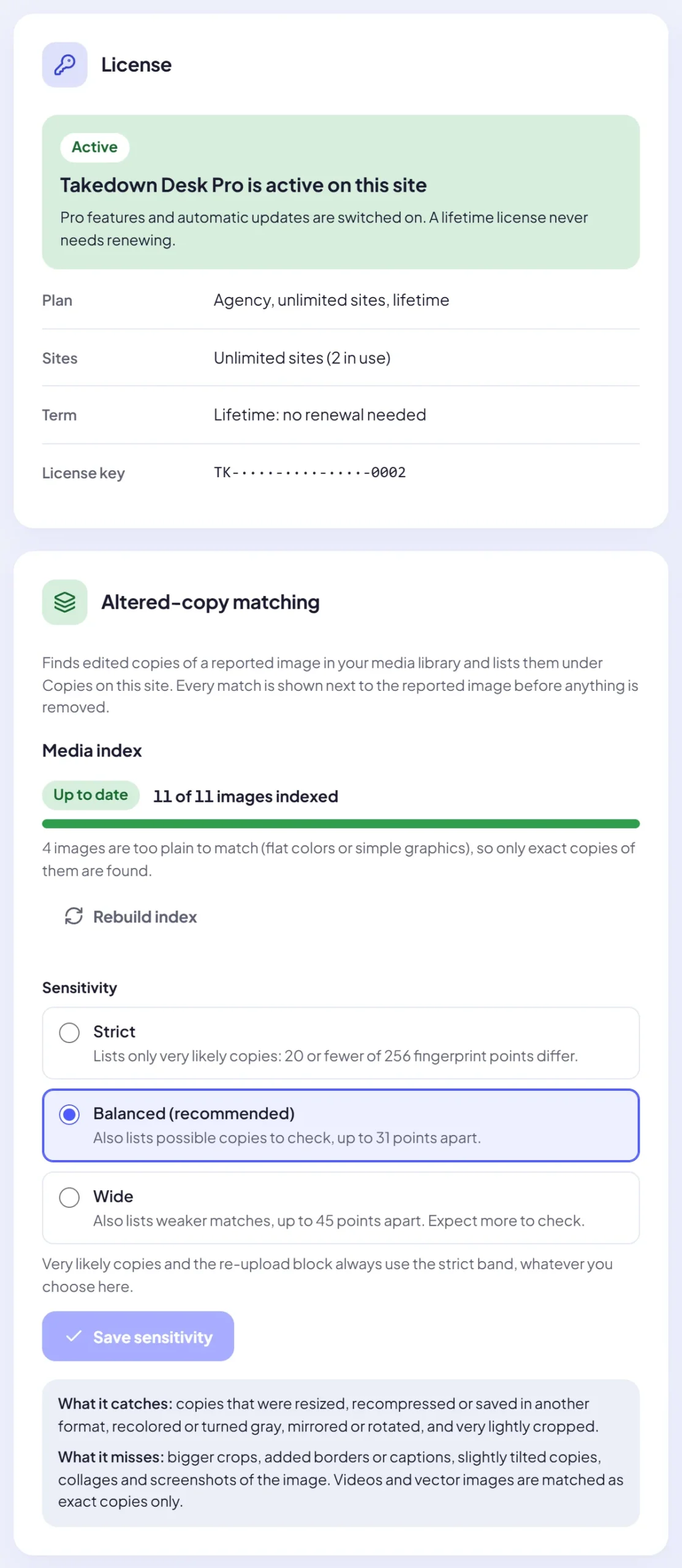
The card then shows your plan, the sites in use, and when the license renews (“Renews on” with the yearly price) or “Lifetime: no renewal needed”.

What the states mean

  • Active: Pro features and automatic updates are on.
  • Ends soon (subscription canceled): Pro keeps working until the end date. Renew before then to keep it.
  • Expired or No longer valid: Pro features and updates pause. Your data is safe. Renew, and Pro switches back on by itself.

If the license server cannot be reached, the card shows the last known details and Pro keeps working. Select Check again later.

Move Pro to another site

On the Move Pro to another site card, select Deactivate on this site. This frees the site’s slot so you can use the key elsewhere. Your requests, record and settings stay on this site.

Updates

Updates arrive in Dashboard > Updates while the license is active. Each update is signed and checked before it installs.

Takedown Desk Pro tab: the License card showing an active Agency lifetime license, and the Altered-copy matching card with the media index, sensitivity levels and what matching catches and misses
The License card with an active lifetime license, above the Altered-copy matching card. Select the image to open it full size.
02

Altered-copy matching

Takedown Desk > Pro, the Altered-copy matching card. Results show on each request under Copies on this site.

What it does: finds edited copies of a reported image in your media library, so you can remove them in the same request. It catches copies that were resized, recompressed or saved in another format, recolored or turned gray, mirrored or rotated, and very lightly cropped. It can miss bigger crops, added borders or captions, tilted copies, collages and screenshots. Videos and vector images are matched as exact copies only.

Getting started

Nothing to do. After activation Pro fingerprints every image in the background, a batch at a time. The card shows the progress (“120 of 4,500 images indexed”). You can leave the page while it runs. New uploads are fingerprinted shortly after they arrive.

On a request

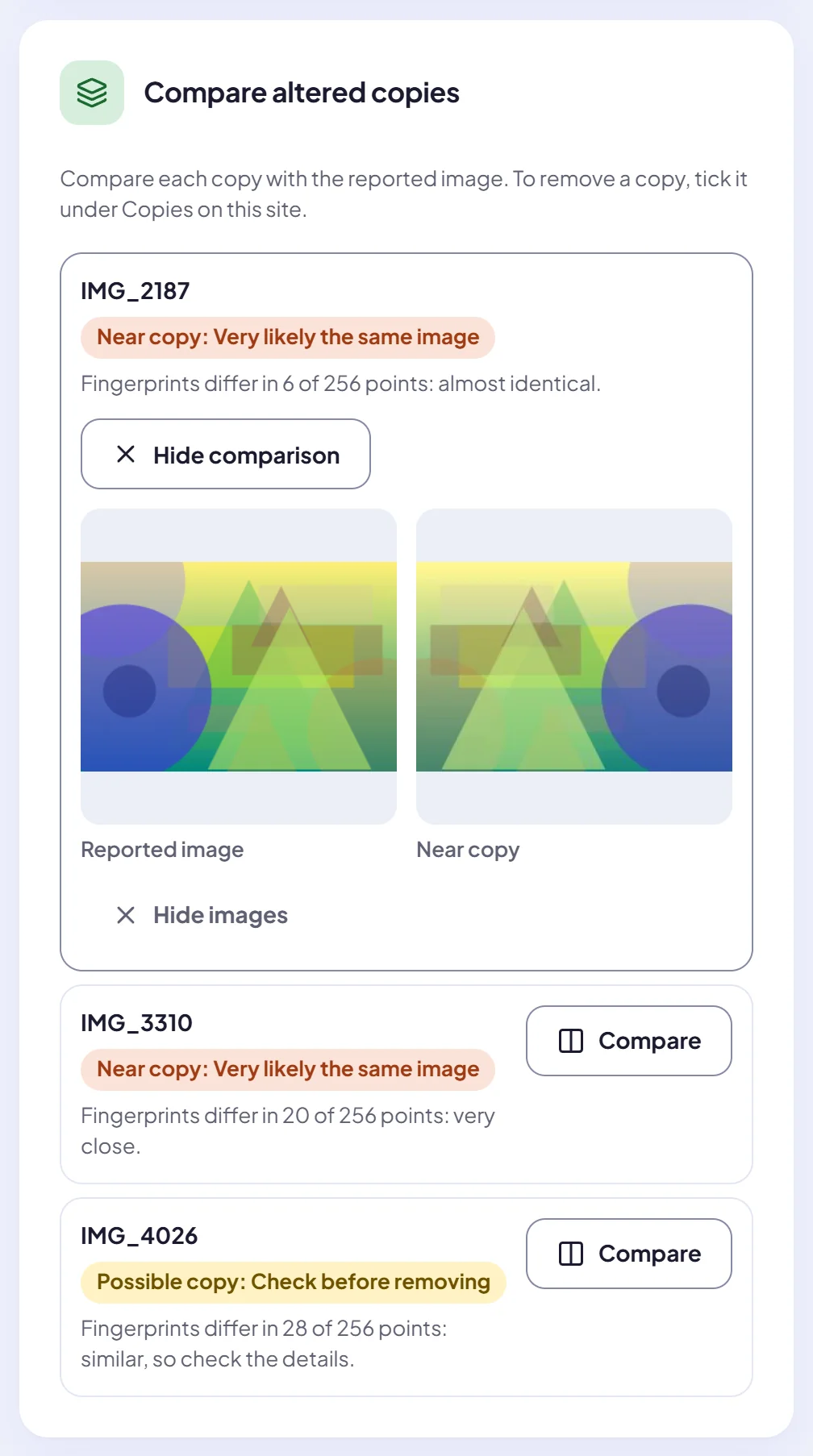
  • Near copy: Very likely the same image means the fingerprints are almost identical.
  • Possible copy: Check before removing means the picture is similar; look before you remove it.
  • Select Compare to see each copy next to the reported image. Previews stay off when the request is about a person under 18.
  • To remove a copy, tick it under Copies on this site, the same way as exact copies.

Sensitivity

  • Strict: only very likely copies.
  • Balanced (recommended): also lists possible copies to check.
  • Wide: also lists weaker matches. Expect more to check.

Very likely copies and the re-upload block always use the strict band, whatever you choose.

Re-upload block

Once an image is removed, altered copies of it cannot be uploaded again. The person uploading sees “This file cannot be uploaded to this site.” Each refused upload is written to the request’s record.

Index controls

Pause indexing (matching keeps working with the images indexed so far), Resume indexing, and Rebuild index (fingerprints every image again in the background).

Compare altered copies on a request: a mirrored, recolored copy shown side by side with the reported image, two near copies and one possible copy with how far their fingerprints differ
Compare altered copies on a request: a mirrored copy next to the reported image, then a near copy and a possible copy.
03

Integrations

Takedown Desk > Pro, the Integrations card. Each plugin shows Detected, Installed, not active or Not installed.

What it does: lets Takedown Desk find, take offline and put back content from community plugins, the same way it handles posts and comments.

Plugin What it covers
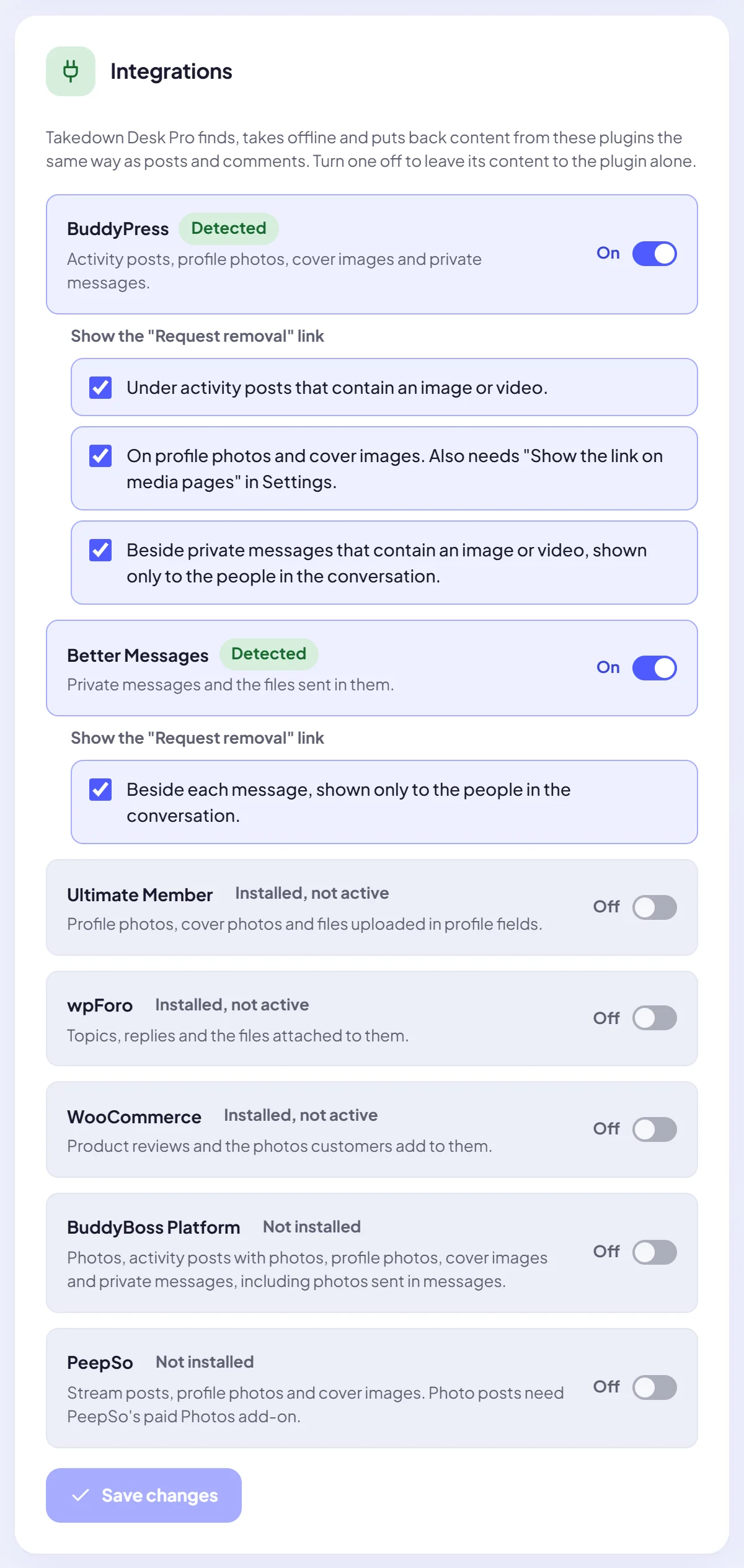
BuddyPress Activity posts, profile photos, cover images and private messages
BuddyBoss Platform Photos, activity posts with photos, profile photos, cover images and private messages (including photos sent in messages). Documents and videos from BuddyBoss’s paid add-ons are not tested yet
PeepSo Stream posts, profile photos and cover images. Photo posts need PeepSo’s paid Photos add-on and are not tested yet
Better Messages Private messages and the files sent in them
Ultimate Member Profile photos, cover photos and files uploaded in profile fields
wpForo Topics, replies and the files attached to them
WooCommerce Product reviews and the photos and videos customers add with Photo Reviews for WooCommerce or Customer Reviews for WooCommerce

Settings

  • Switch an integration On or Off. Off leaves that plugin’s content to the plugin alone.
  • Show the “Request removal” link: choose the places where visitors see the link (for example under activity posts, or on profile photos). WooCommerce reviews also need “Show the link under comments” in Takedown Desk > Settings.
  • Select Save changes.

Private messages can be reported only by the people in the conversation, and the link shows only to them.

Integrations card: BuddyPress and Better Messages detected and switched on with their Request removal link places, and Ultimate Member, wpForo, WooCommerce, BuddyBoss Platform and PeepSo switched off
The Integrations card on a test site with BuddyPress and Better Messages active.
04

Uploader actions

On a request, the Uploader card in the right column.

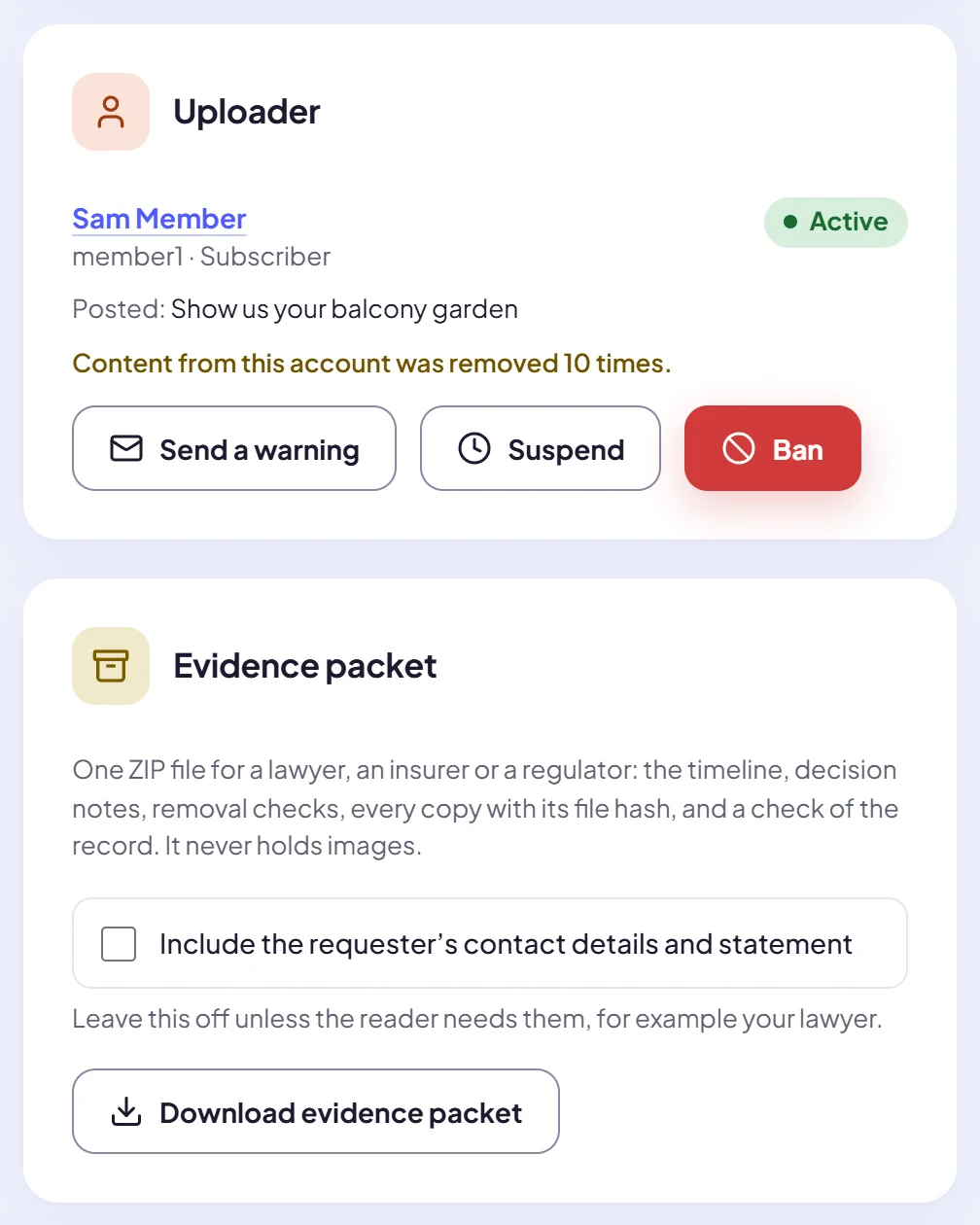
What it does: lets moderators act on the account that posted reported content. The card lists each account that posted an item, with their role, what they posted, and how often content from the account was removed before.

Actions

  • Send a warning: emails the account. You see the email before it goes. It never names or describes the person who made the request.
  • Suspend: for 1 to 365 days. They are logged out everywhere and cannot log in until it ends. It ends by itself.
  • Ban: they are logged out and cannot log in until you lift it. Tick Also hide their other content to make their published posts private and send their approved comments back to pending. On BuddyPress they are also marked as a spammer.
  • Lift suspension or Lift ban: they can log in again, and anything the ban hid comes back.

Administrators and moderators are never affected, and you cannot act on your own account. Every action is written to the request’s record.

Settings

In Takedown Desk > Pro, the Uploader actions card: the warning’s subject and message ({site} becomes your site name, {items} the names of their removed items) and the default suspension length.

When the license ends

Suspensions and bans already in place stay in force. New warnings, suspensions and bans need an active license. Lifting a suspension or a ban always works.

Uploader card on a request with Send a warning, Suspend and Ban for the member who posted the item, and the Evidence packet card with Download evidence packet
The Uploader card for a test member, with the Evidence packet card under it.
05

Escalation

Takedown Desk > Pro, the Escalation and On-call rota cards.

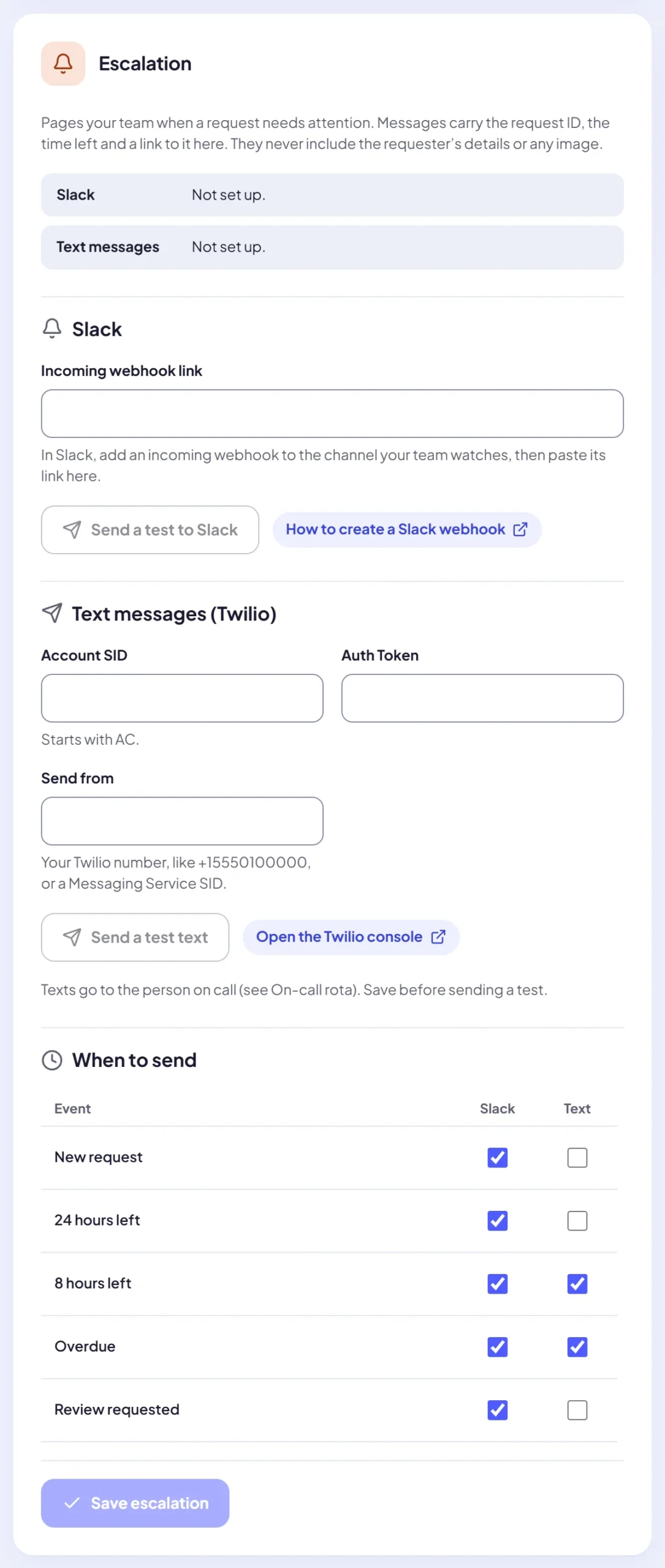
What it does: pages your team in Slack and by text message when a request needs attention. Messages hold the request ID, the time left and a link to the request. They never include the requester’s details or any image.

Slack

  1. In Slack, add an incoming webhook to the channel your team watches.
  2. Paste its link in Incoming webhook link and save.
  3. Select Send a test to Slack.

Text messages (Twilio)

  1. Copy your Account SID (starts with AC) and Auth Token from the Twilio console.
  2. In Send from, enter your Twilio number (like +15550100000) or a Messaging Service SID.
  3. Save, then select Send a test text. It goes to the person on call.

The webhook link and the Auth Token are stored encrypted and never shown again after you save them.

When to send

A Slack and a text switch for each event: New request, 24 hours left, 8 hours left, Overdue, Review requested. By default everything goes to Slack, and texts go out only for 8 hours left and Overdue.

On-call rota

  • Phone numbers: a mobile number for each person who can act on requests, in international format.
  • Weekly rota: a day shift (8 am to 8 pm) and a night shift (8 pm to 8 am) for each day, in the site time zone. Same person all week with Fill the week sets every shift at once.
  • Fallback person: gets the text when a shift has nobody, or that person has no phone number.

The card shows who is on call now. Each message sent or failed is written to the request’s record, and a failed message is tried up to 3 times.

Escalation card: empty Slack webhook and Twilio fields with Send a test buttons, and the When to send table with a Slack and a text switch for each event
The Escalation card before setup, with the default When to send switches.
06

Evidence packet

On a request, the Evidence packet card. Select Download evidence packet.

What it does: one ZIP file per request for a lawyer, an insurer or a regulator (the “FTC inquiry packet”).

What is inside

  • summary.html: a printable summary with the request details, decision notes, removal checks, every copy with its file hash, the timeline, and the result of the record check.
  • record.csv: the request’s rows of the site record, each with its hash.
  • README.txt: what each file is, how to check the hashes, and the hashes of the other two files.

The packet never holds images, so it is safe to share for requests about a person under 18 too. The requester’s contact details and statement are included only when you tick Include the requester’s contact details and statement; leave it off unless the reader needs them. Each download is written to the record. Downloading works with or without an active license.

The Evidence packet card on a request with the box for the requester's contact details and the Download evidence packet button, under the Uploader card
The Evidence packet card sits under the Uploader card on each request.
07

Reports

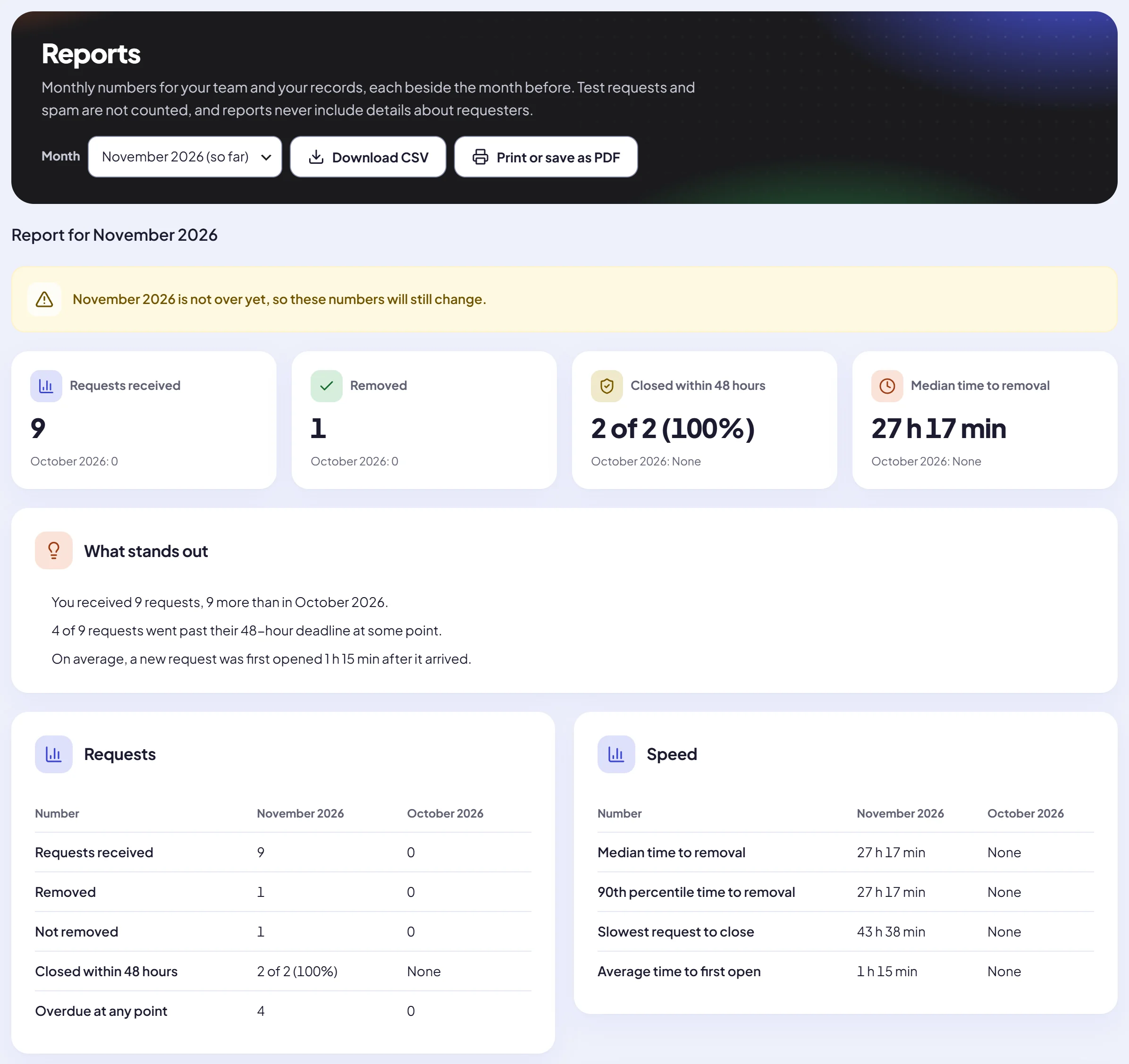
Takedown Desk > Reports tab. It opens on the last full month; pick another in Month. The current month is marked “(so far)”.

What it does: shows how your team handled removal requests in any month, each number beside the month before, and emails a monthly report.

What it shows

  • Tiles: requests received, removed, closed within 48 hours (count and share), and the median time to removal.
  • What stands out: plain-English notes from your own numbers, for example “All 7 requests were closed within 48 hours. The slowest took 31 h 10 min.” Notes appear only when a month has 3 or more requests behind them.
  • Requests: received, removed, not removed, closed within 48 hours, overdue at any point.
  • Speed: median and 90th percentile time to removal (9 in 10 removals took this long or less), the slowest request to close, and the average time until a request was first opened.
  • Not removed, by reason.
  • Items removed: reported items, exact copies and near copies.
  • Re-uploads blocked: exact copies and altered copies.
  • Uploader actions: warnings, suspensions, bans, and suspensions and bans lifted.
  • Past months: the numbers saved on the 1st of each month.

Test requests and spam are never counted, and reports never include details about requesters.

Download and print

  • Download CSV: the month’s numbers as a spreadsheet file (needs the export permission).
  • Print or save as PDF: opens your browser’s print window. Choose “Save as PDF” as the printer to keep a PDF. The print layout leaves out the WordPress menus.

Monthly email

In Takedown Desk > Pro, the Monthly report card: on the 1st of each month at 8:00 am (site time), the numbers for the month before go to the people who get new-request emails, with the CSV attached. Untick Email the monthly report and select Save monthly report to stop it.

When the license ends

The Reports tab shows “Reports need an active Pro license” and the Past months table, which stays readable. The monthly email stops until the license is active again.

Reports tab for a month on a test site: requests received, removed, closed within 48 hours and median time to removal, plain-English notes, and the Requests and Speed tables beside the month before
The Reports tab for a month that is not over yet, on a test site.
08

Agency tools (Agency plans)

Network Admin > Takedown Desk > All sites, and Takedown Desk > Client sites.

Two screens help an agency watch removal deadlines on many sites at once:

  • All sites in Network Admin, for a WordPress multisite network.
  • Client sites in Takedown Desk, for separate client sites that each run Takedown Desk Pro.

Both show each site’s open requests with the request ID, status, deadline and item name. Neither ever shows anything about the person who made a request: no name, email, phone, signature or statement. Test requests and spam are left out. The work itself still happens on each site: links open the request in that site’s own Takedown Desk, and each site keeps its own record.

Both screens need an active Agency license (lifetime or yearly).

All sites (multisite networks)

Where: Network Admin > Takedown Desk > All sites. Only Super Admins (the manage_network_options capability) see it.

When it shows: the main site of the network has an active Agency license. Takedown Desk and Takedown Desk Pro must be active on each site you want listed (network activation is easiest). Other sites do not need their own license to appear here.

What you see:

  • Totals: open requests, overdue requests and the number of sites reporting.
  • One table of open requests from every site, the soonest deadline first, with the clock (time left, or how late), the request ID, the item, the site and the status. Select a request ID to open it in its site.
  • Site filter: choose a site and select Show to list only its requests.
  • Sites: each site with its open and overdue counts and when it last updated. Select a site name to open its Takedown Desk.

How it stays current: each site updates its entry when a request arrives, when a request changes status, and once a day. A site appears after its first update. A deleted site is removed from the list.

Client sites (an agency hub and separate client sites)

The agency’s own site is the hub. Each client site gives the hub a connection key. The hub then reads the client’s open requests directly from the client site every 15 minutes. There is no central server in between.

On each client site: create a connection key

Any active Takedown Desk Pro license works on a client site (Personal, Business or Agency).

  1. Open Takedown Desk > Pro, card Agency connection.
  2. Select Create connection key.
  3. Copy the key and the site address shown under it, and send both to your agency privately. The key is shown only once. The site keeps only a scrambled copy (a hash), so it cannot show it again.
  4. Select Done, hide the key.

The card then shows when the key was created and when your agency last used it.

  • Replace key makes a new key. The old key stops working at once, so the agency must add the site again with the new key.
  • Revoke key ends the connection. The agency can no longer read this site.
  • While the license is not active, the agency cannot read the site. Revoking still works.

After 10 wrong keys from one address within 15 minutes, the site refuses that address for 15 minutes.

On the hub: add and watch client sites

The hub needs an active Agency license. The Client sites tab appears in Takedown Desk, next to the Pro tab, for people who can manage Takedown Desk settings.

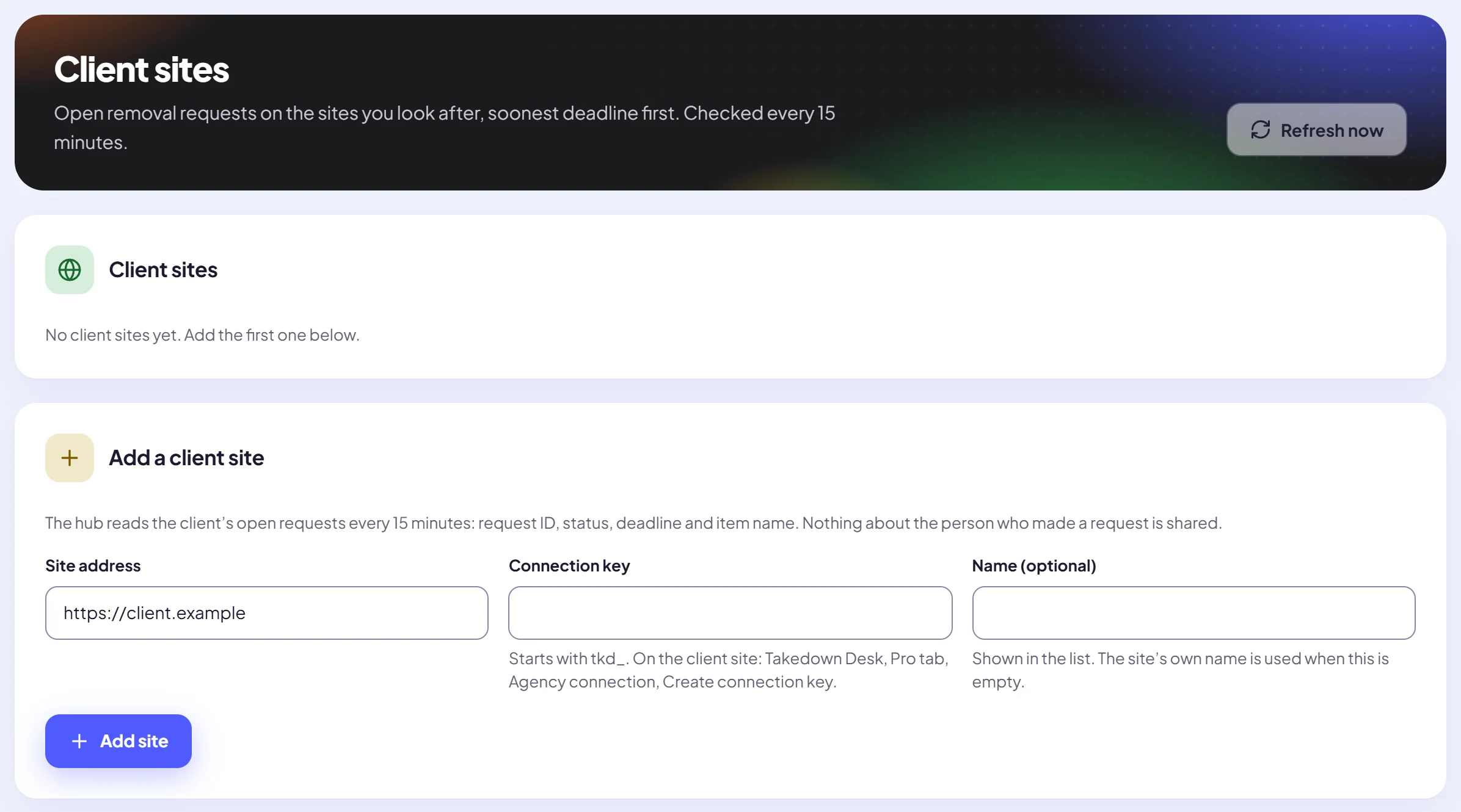
  1. Open Takedown Desk > Client sites, card Add a client site.
  2. Enter the Site address (for example https://client.example; the hub adds https:// when it is missing) and paste the Connection key (it starts with tkd_). A Name is optional; the site’s own name is used otherwise.
  3. Select Add site. The hub checks the site at once. A site that does not answer, or that refuses the key, is not added and the message under the field says why.

What you see:

  • Open requests on client sites: one table for all clients, the soonest deadline first, with the clock, request ID, item, site and status. Select a request ID to open it on the client site (a new tab; sign in there with your account on that site).
  • Client sites: each site with its address and a status line: when it was last checked and its counts, or, in red, why the last check failed and the date of the list still shown. Rows from a site whose last check failed carry a Not updated chip.
  • Refresh now checks every client site at once.
  • Remove takes a site off the hub. Nothing changes on the client site; revoke the key there to end the connection fully.

Common messages:

Message What to do
The site did not accept the connection key. The key was replaced or revoked. Create a new key on the client site, remove the site from the hub and add it again.
Takedown Desk Pro is not active on the client site. Activate the license on the client site. The hub keeps showing the last list it received.
Takedown Desk Pro was not found at this address. Check the address, and that Takedown Desk Pro is active on that site.
The site answered with a redirect. Use the site’s exact address, with https:// and www if it uses them.
The site could not be reached. The site is down or blocks the request. The hub tries again in 15 minutes.

Good to know:

  • Only https:// addresses are accepted. Plain http:// works only for local test sites (localhost, 127.0.0.1 and *.test).
  • The hub only ever reads one address on each client: its Takedown Desk summary. It follows no redirects and never opens reported links.
  • Connection keys are stored encrypted on the hub and are never shown again after you add a site.
  • If the hub’s Agency license ends, checks stop and the last lists stay visible. Adding sites and Refresh now wait until the license is active again.
  • Each client shows up to 100 open requests, the soonest deadlines first.

Client sites tab: Refresh now, the empty client list, and the Add a client site form with a site address, connection key and optional name
The Client sites tab on a hub before the first client is added.
09

Developer notes

Facts for developers and hosts. Pro builds on the free plugin, documented in the free docs.

Topic Detail
Requirements WordPress 6.5 or later, PHP 7.4 or later, and the free Takedown Desk plugin (Requires Plugins: takedown-desk). Pro does nothing on its own.
Fingerprints The PDQ perceptual hashing algorithm by Meta Platforms, Inc. (ThreatExchange, BSD license), in Pro’s own PHP port. Fingerprints are made and compared on your server and never sent off it.
Background jobs Action Scheduler by Automattic (GPLv3), bundled in lib/action-scheduler and loaded only when no newer copy is active. The index is built a small batch at a time and can be paused.
License server swdashapi.swiftoutbox.com. At activation it receives the license key, site address and WordPress and plugin versions. After that, on deactivation, once a day while active and on update checks, requests are signed with the site’s own secret and identify the site by its ID. It answers with the license status and, when there is one, a signed update package. No request, requester or content data is sent.
Updates Arrive in Dashboard > Updates while the license is active. Every update is signed and checked before it installs.
Slack One message to the incoming webhook link you pasted (https://hooks.slack.com/...) per rule that fires: site name, request ID, time left, deadline and a link to the request in your admin.
Twilio One request to https://api.twilio.com with your Account SID and Auth Token, the sender number or Messaging Service SID, the on-call mobile number and a short text.
Stored secrets The Slack webhook link and the Twilio Auth Token are stored encrypted with your site’s Takedown Desk key and never shown again in the browser after you save them.
Client summary The hub reads ?rest_route=/takedown-desk-pro/v1/summary on each client site with the connection key, every 15 minutes. Nothing is sent while the Agency license is not active, or before you add a client site.
Connection keys Start with tkd_. The client site keeps only a hash; the hub stores the key encrypted.
All sites Shown to users with the manage_network_options capability when the network’s main site has an active Agency license.
Uninstall Deleting Takedown Desk Pro frees this site’s license slot. Pro’s own settings and tables are deleted only when “Delete all Takedown Desk data when the plugin is deleted” is on in Takedown Desk > Settings. Your requests and the record stay in Takedown Desk either way.
Icons From Lucide (ISC license), shared with the free Takedown Desk plugin.
10

Troubleshooting

The License card shows old details

The license server could not be reached. The card shows the last known details and Pro keeps working. Select Check again later.

The license says Ends soon

The subscription was canceled. Pro keeps working until the end date. Renew before then to keep it.

The license says Expired or No longer valid

Pro features and updates pause. Your data is safe. Renew, and Pro switches back on by itself.

The Reports tab says “Reports need an active Pro license”

The license is not active. The Past months table stays readable, and the monthly email stops until the license is active again.

An edited copy was not found

Check the progress on the Altered-copy matching card: while the index is still building, results may be partial. Matching can miss bigger crops, added borders or captions, tilted copies, collages and screenshots, and videos and vector images are matched as exact copies only. Strict lists only very likely copies; Balanced and Wide also list possible and weaker matches.

Someone sees “This file cannot be uploaded to this site.”

That is the re-upload block: the file is an altered copy of an image that was removed. Each refused upload is written to the request’s record.

The “Request removal” link does not show under WooCommerce reviews

WooCommerce reviews also need “Show the link under comments” in Takedown Desk > Settings, as well as the link place on the Integrations card.

A test text did not arrive

Texts go to the person on call. Check the weekly rota and that each person has a mobile number in international format, and set a fallback person for shifts with nobody.

The monthly report email did not arrive

It goes on the 1st at 8:00 am (site time) to the people who get new-request emails: moderators and any extra addresses in Takedown Desk > Settings. Check that Email the monthly report is ticked and saved on the Monthly report card.

I cannot act on an uploader

Administrators and moderators are never affected, and you cannot act on your own account. New warnings, suspensions and bans also need an active license; lifting them always works.

A client site could not be added

The message under the field says why. See Common messages in Agency tools for what to do with each one.

Still stuck?

Tell us what you tried and what you see on the screen, and we will help you sort it out.