Free WordPress plugin
See who visits your WordPress site, without Google Analytics or cookies
Want to see who visits your WordPress site, which pages they read and where they came from? SwiftWebDev Dashboard is a free plugin that adds WordPress visitor statistics to your admin: visitors, page views, top pages, referrers, devices and AI visitors. It counts on your own site, sets no cookies and never saves IP addresses. There is no Google Analytics account to connect.
- No cookies
- IP addresses never saved
- Data stays in your database
- No limits or license key
- Who visits my WordPress site?
- Which pages do people read?
- Where do my visitors come from?
- Does ChatGPT send me visitors?
The answer: one screen in your WordPress admin
Short answer
How do I see who visits my WordPress site?
Install a visitor statistics plugin that counts on your own site. With SwiftWebDev Dashboard there is nothing to connect, no account to create and no tracking code to paste. Counting starts the moment the plugin is active.
I am Rasel Hakkani, a WordPress developer. I built this plugin because the default WordPress dashboard tells you almost nothing about who reads your site.
Install it
In your admin, open Plugins, Add New Plugin and search for SwiftWebDev Dashboard. Click Install Now, then Activate.
Open SwiftWebDev
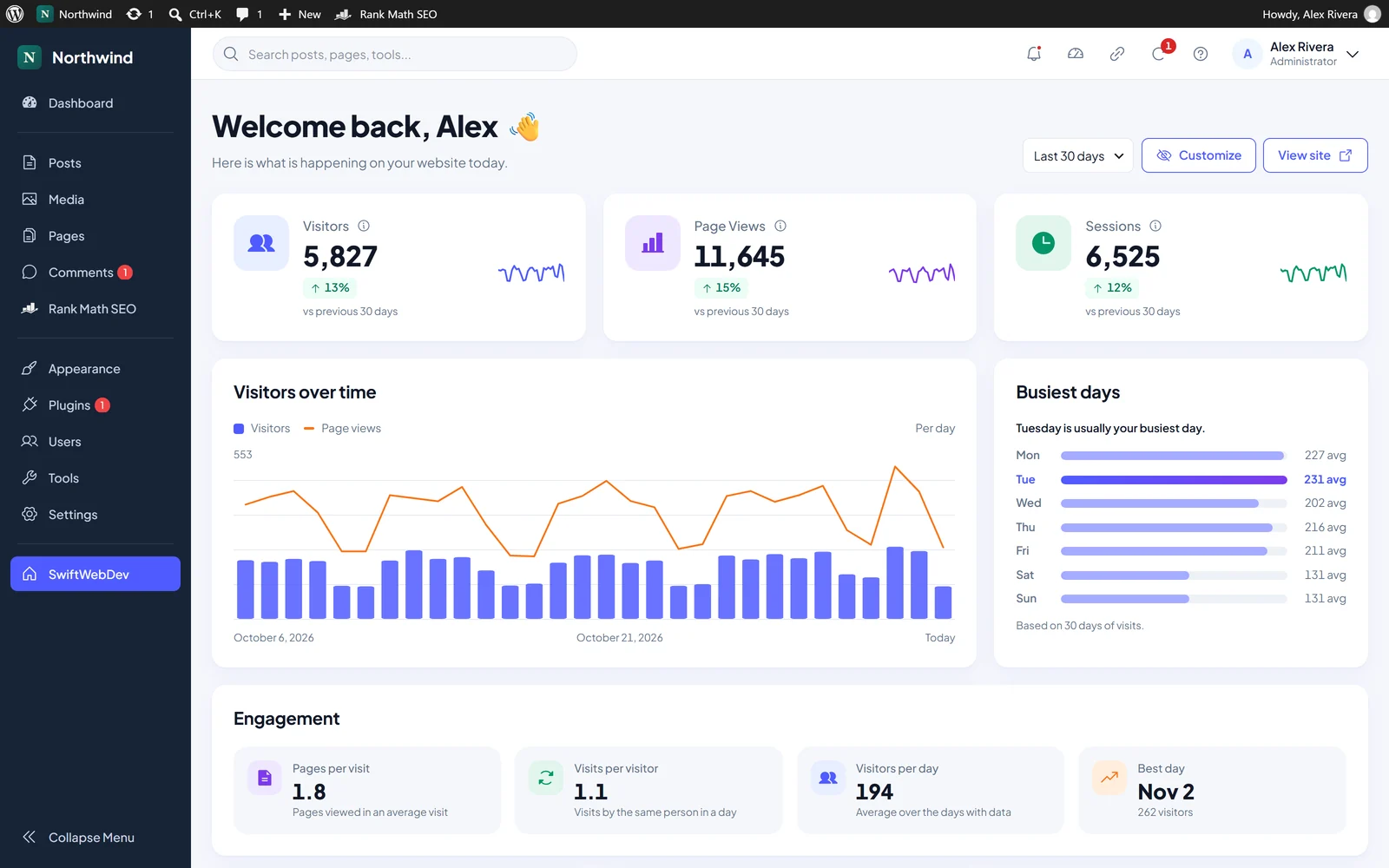
Click SwiftWebDev in the admin menu. Visitors, page views and sessions are the first cards on the screen.
Pick a period
Switch between the last 7, 30 or 90 days. The top cards show the change against the period before.
How many visitors does my site get, and which pages do they read?
The visitor stats screen answers both. Here is what each part of it tells you, on a real screenshot of the plugin.
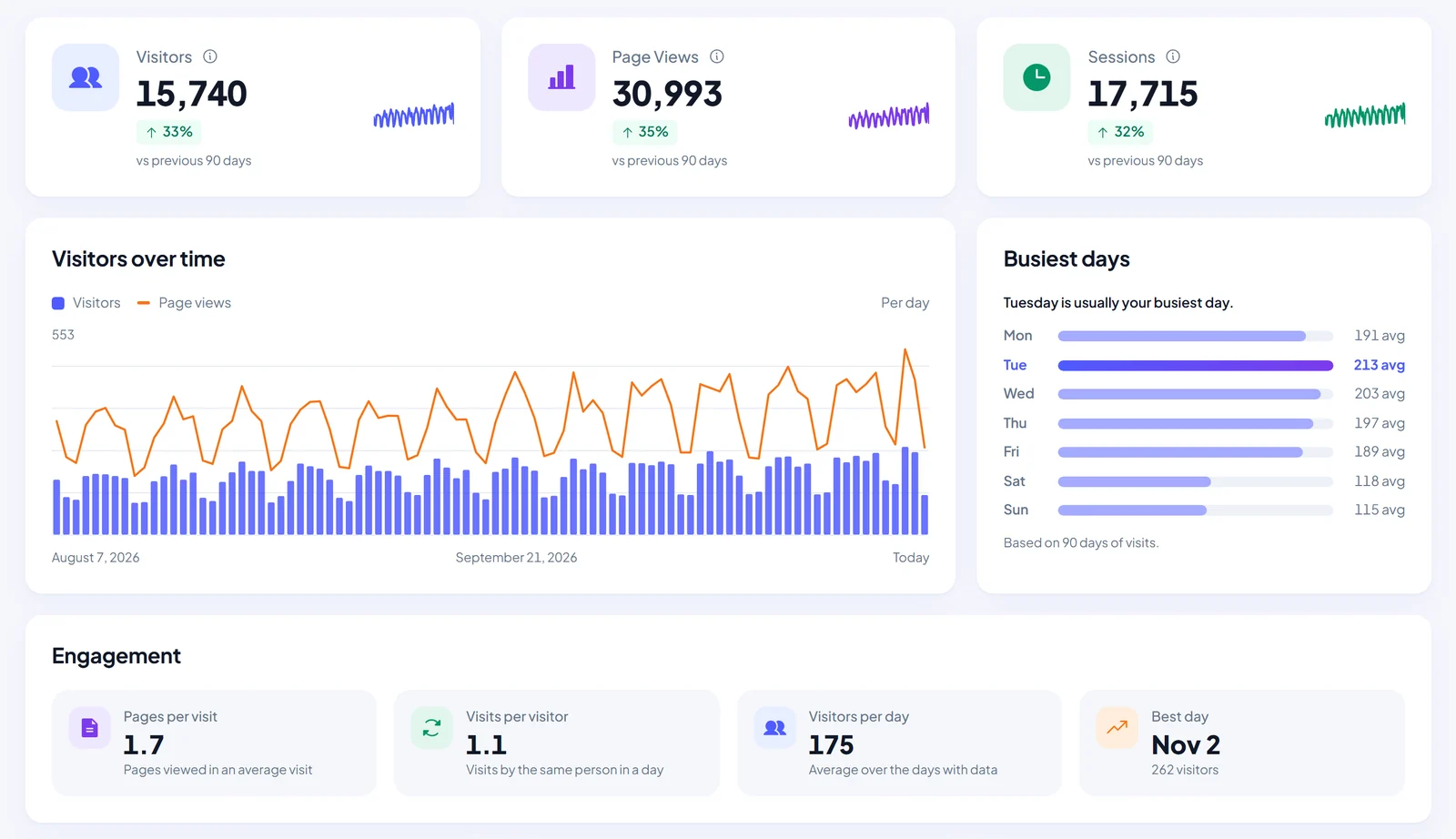
Visitors. How many people came in the period, with the change against the period before.
Page views. Every page those people opened.
Sessions. Separate visits. One person can make several in a day.
Visitors over time. A daily chart of visitors and page views, so spikes and quiet days stand out.
Busiest days. The day of the week that usually brings the most visitors.
Engagement. Pages per visit, visits per visitor, visitors per day and your best day.
Which pages they read, and on what device
The Top pages card ranks the pages people opened most in the selected period. The Devices card splits visits into desktop, mobile and tablet. Both follow the same 7, 30 or 90 day switch as the rest of the screen.
Where do my visitors come from?
The Referrers card lists the websites that sent people to you in the selected period, counted once per visit: search engines, social networks, other sites that link to you and AI assistants. Visits with no referring address, such as someone typing your address, count as direct and are not listed there.
- Search engines
- AI assistants
- Other websites
- Social networks
Your site
AI visitors: people sent by ChatGPT and other assistants
The AI visitors card counts people who clicked a link to your site in ChatGPT, Perplexity, Gemini, Claude, Copilot and 6 more assistants. You see their share of all visits and the change against the previous period.
- ChatGPT
- Perplexity
- Gemini
- Claude
- Copilot
- and 6 more
Treat the number as a minimum. A link copied out of a chat and pasted into the browser arrives with no referrer, so it counts as Direct. Clicks from Google AI Overviews show as Google.
AI crawlers: the bots that read your pages
A separate card counts visits from AI bots such as GPTBot, ClaudeBot, PerplexityBot, Meta and Amazon, by company, with the last day each was seen. Every visit is sorted by purpose:
- TrainingGPTBot collects pages to train models.
- AI searchOAI-SearchBot indexes pages for ChatGPT search answers.
- Asked by a userChatGPT-User opens a page when someone asks ChatGPT to.
Bots are recognized by the name they send, and anyone can fake a name. Page caching can hide some visits, so the card shows a minimum. The AI access check reads your robots.txt only: a block at your host or firewall does not show there.
How do I see views for each post?
Open Posts or Pages in your admin. The plugin adds a Views column to both lists with the page views of each published post or page in the last 30 days, so you see what people read without opening a report. The classic WordPress dashboard also gets a compact visitor counter widget.
Looking for a public hit counter that shows a number to your visitors? This is not one. The counter widget and the Views column sit in your WordPress admin, not on your pages.
More than visitor stats: speed, updates and a weekly email
The same free plugin answers three more questions site owners ask every week.
How fast is each page?
Run a Google PageSpeed test on mobile and desktop for your homepage or any other page of your site. You get the Performance, Accessibility, Best practices and SEO scores, Core Web Vitals and a ranked, plain-language list of fixes to reach 90+. No Google API key needed.
How to check your PageSpeed score in WordPress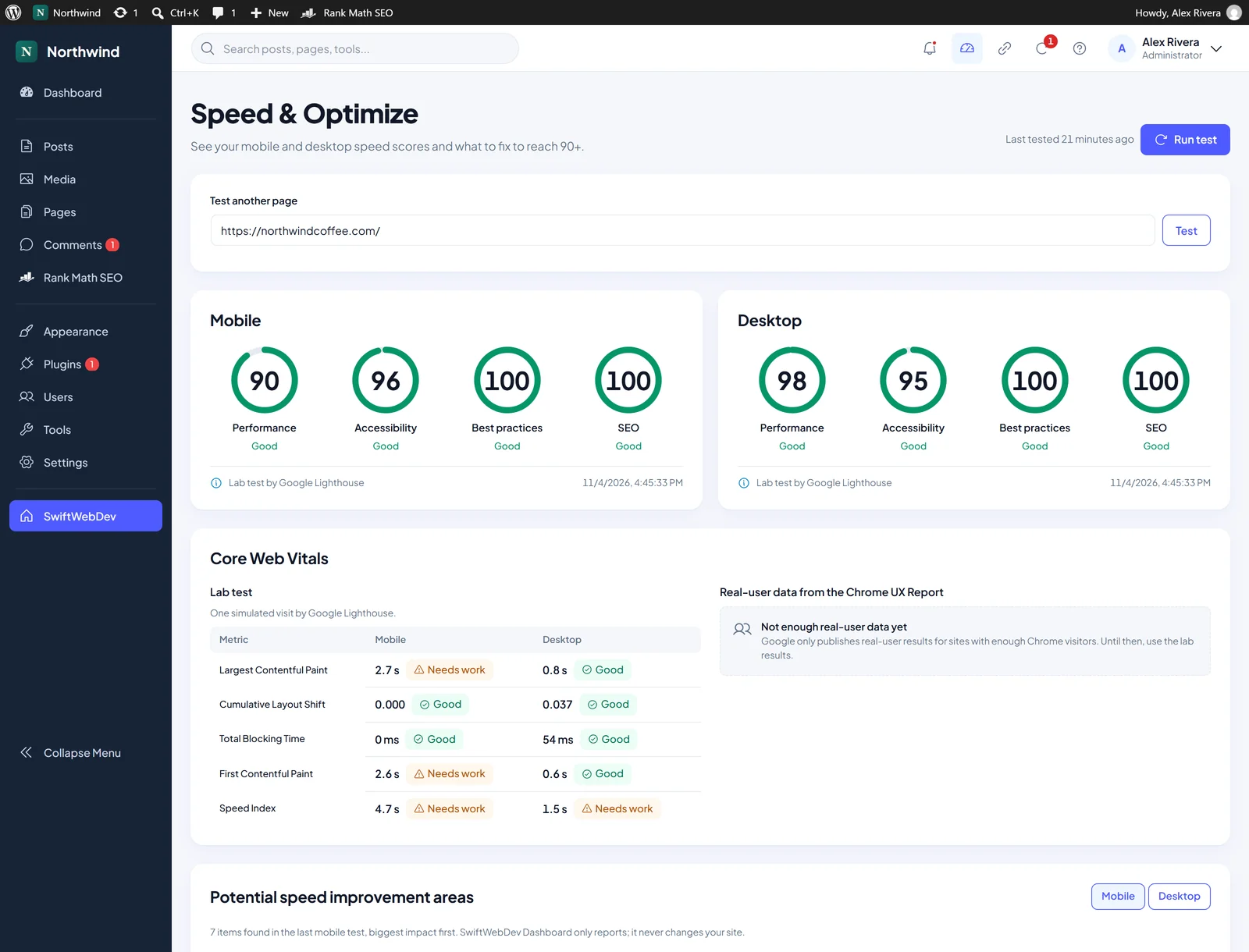
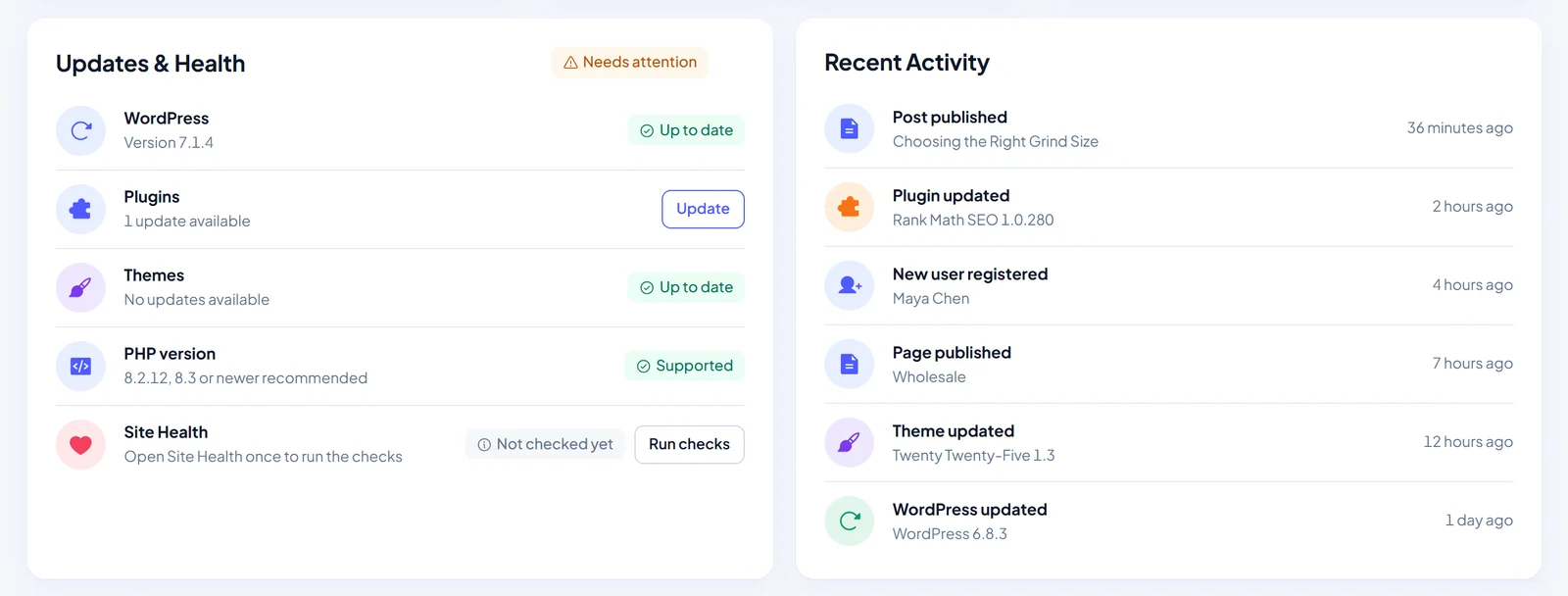
Is anything out of date?
Pending WordPress, plugin and theme updates, your PHP version next to the recommended one, your Site Health status and a feed of recent activity.
Can I get a weekly traffic email?
Yes, in the free plugin. Turn on the Weekly Site Report and every Monday it sends last week’s numbers, compared with the week before, from your own site with WordPress mail. It is off until you turn it on, and you can send yourself a test first.
Watch the visitor stats before you install
Short walkthroughs of the free plugin, each under three minutes.
Read the transcript
Real visitor stats. No cookies, no Google account. Open SwiftWebDev in the admin menu. Your visitor stats are on the dashboard, in six cards. You do not need a Google Analytics account, and no cookies are used. The top three cards are Visitors, Page Views, and Sessions. Visitors are the unique people who came to your site. Page views count every page they opened. Sessions are separate visits, so one person can have several.
Use the period picker at the top to choose the last seven, thirty, or ninety days. Thirty is the default. Each card compares the total with the period just before it. Green means it went up, red means it went down, and the sparkline shows the daily trend. Visitors over time shows a bar for each day, with page views as a line. Hover a bar to see the numbers for that day. Busiest days shows the average visitors for each day of the week, and names your busiest day.
Engagement adds four numbers: pages per visit, visits per visitor, average visitors per day, and your best day in the period. How is a visit counted? After a page loads, one small script sends a single request to your own site. Bots, link previews, and prefetched pages are skipped. Logged-in users are not counted by default, so your own visits do not inflate the numbers. You can change this in SwiftWebDev Dashboard settings, in your user menu.
There are no cookies and no browser storage. Your server turns the IP address and browser into a one-way code, mixed with a random value that changes every day. The IP address, browser details, and page addresses are never saved. A new session starts after thirty minutes without a page view. Because the code changes daily, a person who visits on two different days is counted once on each day.
Raw visit records are deleted after forty-eight hours. Only daily totals are kept, for one hundred and eighty days, enough to compare ninety days with the ninety before. Everything stays in your own WordPress database. For deeper reports, like real-time visitors, traffic sources, and top pages, there is the separate SwiftWebDev Dashboard PRO add-on. The free stats work fully on their own.
That is cookieless visitor stats in SwiftWebDev Dashboard. Next: Google PageSpeed scores for any page of your site. Subscribe for more SwiftWebDev Dashboard tutorials.
Read the transcript
Your WordPress dashboard, rebuilt in under a minute. SwiftWebDev Dashboard and Analytics is a free WordPress plugin. It adds one clean home screen to your admin, so you see your visitors, your site speed, and your site health in one place. Visitor stats are cookieless, and stay in your own database. Google PageSpeed scores for mobile and desktop run with one click, for any page, with no API key.
Updates and Health shows anything that is out of date. Your site's front end only gets one small counter script, after the page has loaded. Everything here is free, with no license key. Extra reports come from a separate add-on, SwiftWebDev Dashboard PRO. To install it, open Plugins in your WordPress admin, and click Add Plugin. Search for SwiftWebDev Dashboard, click Install Now, then Activate.
Now look at the left menu. The plugin adds one item, called SwiftWebDev. Click it to open your new dashboard. Your site logo and name sit at the top, and the menu keeps this modern style on every admin page. Only administrators get the new look. The header search jumps to any admin screen, post, or page. Next to it are notifications, shortcuts to Speed and Optimize and Quick Links, pending updates, and help.
On the right is your user menu. It holds Speed and Optimize, Quick Links, and SwiftWebDev Dashboard settings. Click settings. Open SwiftWebDev Dashboard after login shows this dashboard instead of the WordPress dashboard. It is off by default, so turn it on if you want this screen first. Do not count logged-in users is on by default. It keeps your own visits, and your team's, out of the visitor stats.
Menu name and Menu logo set the top of the left menu. By default they use your site title and site icon. Choose image picks a new logo, and a square image works best. Use default switches back. Save changes stays greyed out until you change something. Click it, and a message confirms your settings are saved. Want the classic WordPress dashboard? Open your user menu, and choose Classic WordPress dashboard.
It always works, even with the after login setting on. That is it. Install, open SwiftWebDev, and choose your settings. Next: every dashboard card, explained. Subscribe for more SwiftWebDev Dashboard tutorials.
Read the transcript
How fast is your site, really? Find out from your dashboard. Open SwiftWebDev Dashboard and Analytics, and click the gauge icon in the header to open Speed and Optimize. Click Run test. Google PageSpeed Insights tests your homepage on mobile, then on desktop. Each test takes up to thirty seconds, and you do not need a Google API key. To test another page, paste its full address into Test another page, and click Test.
Only pages of your own website can be tested. Google can only test a site that is online at a public address, so run tests on the live site, not a local copy. You can run ten tests every ten minutes, and each run is two tests, mobile and desktop. Each device gets four scores: Performance, Accessibility, Best practices, and SEO. Ninety to one hundred is good, fifty to eighty-nine needs work, and below fifty is poor.
Next come the Core Web Vitals. The lab test is one simulated visit by Google Lighthouse. It measures Largest Contentful Paint, Cumulative Layout Shift, Total Blocking Time, First Contentful Paint, and Speed Index, each marked good, needs work, or poor. Then comes real-user data from the Chrome UX Report: real Chrome visitors to this page over the last twenty-eight days. If the page alone has too few visits, you see your whole site instead.
Google only publishes this data for sites with enough visitors. Until then, use the lab results. Potential speed improvement areas lists what to fix to reach ninety plus, biggest impact first. Each item shows its impact, what was measured, the estimated savings, and What to do, in plain language. Switch between mobile and desktop, or open the full Google report. SwiftWebDev Dashboard only reports.
It never changes your site. Your dashboard shows your homepage results too. Speed scores has your mobile and desktop score, Run test, and Test another page. Potential speed improvement areas shows the three changes that would help your mobile score the most. Weekly scheduled tests are part of SwiftWebDev Dashboard PRO. That's it. Test your homepage and your key pages on the live site, read the four scores and the Core Web Vitals, then work through the fixes from the top.
Next: Quick Links, the admin menu, and site health. Subscribe for more SwiftWebDev Dashboard tutorials.
Need real-time visitors, goals or UTM campaigns?
Everything above is free, with no limits, license keys or time restrictions. SwiftWebDev Dashboard PRO is a separate add-on for deeper reports.
See SwiftWebDev Dashboard PROA PRO license is software only and does not include Swift Web Dev development services.
- Real-time visitors
- Countries and browsers
- Goals and conversions
- UTM campaigns
- AI assistant landing pages
- Traffic spike email alerts
- Form and click tracking
- Session recordings
- CSV export
- Weekly scheduled speed tests
What these visitor statistics do not do
Plain limits, so you know them before you install.
-
No history from before you install. Counting starts when the plugin is active. It does not import Jetpack Stats or Google Analytics data.
-
No public counter. The visitor counter widget lives in your WordPress dashboard, not on your pages.
-
AI visitor counts are a minimum. Links copied out of a chat arrive as Direct, and Google AI Overviews show as Google.
-
Bot names can be faked. Page caching can also hide some bot visits, and the AI access check reads robots.txt only.
-
Your own visits are left out. Logged-in users are not counted by default. You can change that in the settings.
-
Speed tests need a public site. Google cannot test a site that only runs on your own computer.
Switching from another stats tool?
Side-by-side comparisons, including what the other tool does better.
Compare with Jetpack StatsCompare with MonsterInsightsWordPress visitor statistics: questions people ask
Straight answers about cookies, speed and your data. Setup steps and every setting are in the SwiftWebDev Dashboard docs.
Does it use cookies or Google Analytics?
No. Visits are counted on your own site without cookies or browser storage, and nothing is sent to Google Analytics. Each visit is identified by a one-way hash of the IP address and browser, combined with a random value that changes every day. IP addresses and browser details are never saved.
Do I need an account or an API key?
No. Install and activate the plugin, then open SwiftWebDev in the admin menu. Speed tests run through the SwiftWebDev speed test service with its own Google API key, so you do not need one either.
Do I still need a cookie banner?
The plugin sets no cookies and stores no IP addresses, so it adds nothing of its own to a banner. Whether your site needs one depends on everything else on it, such as embeds, ads or other tools, and on where your visitors live. This is general information, not legal advice.
Does a visitor counter slow WordPress down?
The front end gets one small counter script that sends a single request after the page has loaded, plus a check of each request for known AI bot names. Everything else runs in the admin, and speed tests run only when an administrator clicks Run test.
How long is the visitor data kept?
Raw visit records are deleted after 48 hours. Daily totals are kept for 180 days, so the 90 day view can be compared with the 90 days before it. Daily counts per page, referrer and device are kept for 90 days. Everything stays in your WordPress database.
Can I get a weekly traffic email?
Yes, for free. Turn on the Weekly Site Report in the plugin settings. Every Monday it sends visitors, top pages, referrers and AI traffic from the past week, compared with the week before, plus speed scores, pending updates and Site Health. It is off by default, and you can send yourself a test first.
Can I show a visitor counter on my site?
No. The free plugin adds a compact visitor counter widget to the classic WordPress dashboard and a Views column to your Posts and Pages lists. Both are for you in the admin. It does not add a public hit counter to your pages.
Are my own visits counted?
Not by default. Logged-in users are left out, so you and your team do not inflate the numbers. You can change this in the plugin settings.
Why are my numbers different from Google Analytics?
Each tool counts in its own way. Google Analytics depends on cookies and its own script, which consent choices and ad blockers can limit. This plugin counts on your own site, and because the hash changes every day, it cannot tell that a visitor on Monday is the same person on Tuesday. Compare trends over time rather than exact totals.
Why does some ChatGPT traffic show as Direct?
Some apps open links without a referring address or a utm_source tag, and people often copy a link out of a chat and paste it into the browser. Those visits look the same as someone typing your address, so they count as Direct. Treat the AI visitors number as a minimum.
See who visits your WordPress site, starting today
Nothing to connect and no account to create. Install it, open SwiftWebDev, and the count begins.