Two screens help an agency watch removal deadlines on many sites at once:
- All sites in Network Admin, for a WordPress multisite network.
- Client sites in Takedown Desk, for separate client sites that each run Takedown Desk Pro.
Both show each site’s open requests with the request ID, status, deadline and item name. Neither ever shows anything about the person who made a request: no name, email, phone, signature or statement. Test requests and spam are left out. The work itself still happens on each site: links open the request in that site’s own Takedown Desk, and each site keeps its own record.
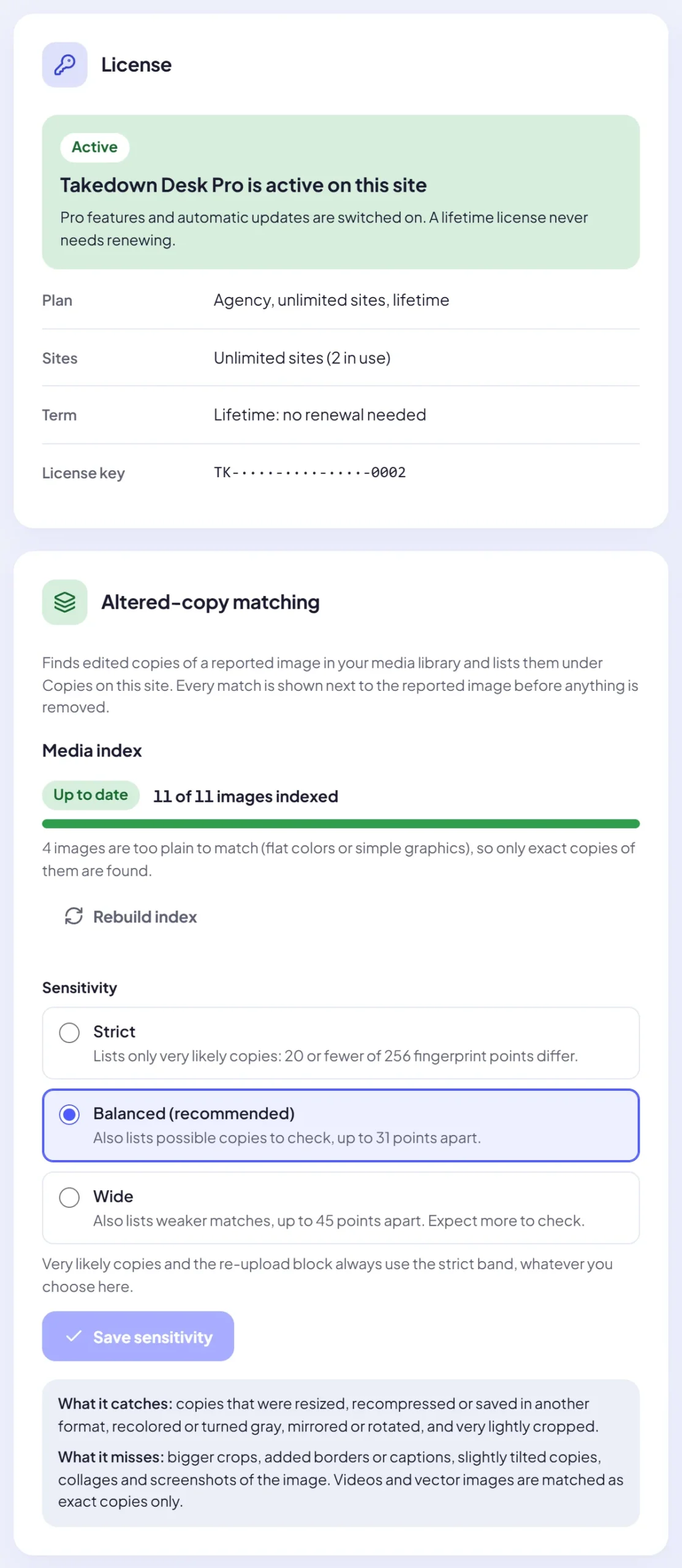
Both screens need an active Agency license (lifetime or yearly).
All sites (multisite networks)
Where: Network Admin > Takedown Desk > All sites. Only Super Admins (the manage_network_options capability) see it.
When it shows: the main site of the network has an active Agency license. Takedown Desk and Takedown Desk Pro must be active on each site you want listed (network activation is easiest). Other sites do not need their own license to appear here.
What you see:
- Totals: open requests, overdue requests and the number of sites reporting.
- One table of open requests from every site, the soonest deadline first, with the clock (time left, or how late), the request ID, the item, the site and the status. Select a request ID to open it in its site.
- Site filter: choose a site and select Show to list only its requests.
- Sites: each site with its open and overdue counts and when it last updated. Select a site name to open its Takedown Desk.
How it stays current: each site updates its entry when a request arrives, when a request changes status, and once a day. A site appears after its first update. A deleted site is removed from the list.
Client sites (an agency hub and separate client sites)
The agency’s own site is the hub. Each client site gives the hub a connection key. The hub then reads the client’s open requests directly from the client site every 15 minutes. There is no central server in between.
On each client site: create a connection key
Any active Takedown Desk Pro license works on a client site (Personal, Business or Agency).
- Open Takedown Desk > Pro, card Agency connection.
- Select Create connection key.
- Copy the key and the site address shown under it, and send both to your agency privately. The key is shown only once. The site keeps only a scrambled copy (a hash), so it cannot show it again.
- Select Done, hide the key.
The card then shows when the key was created and when your agency last used it.
- Replace key makes a new key. The old key stops working at once, so the agency must add the site again with the new key.
- Revoke key ends the connection. The agency can no longer read this site.
- While the license is not active, the agency cannot read the site. Revoking still works.
After 10 wrong keys from one address within 15 minutes, the site refuses that address for 15 minutes.
On the hub: add and watch client sites
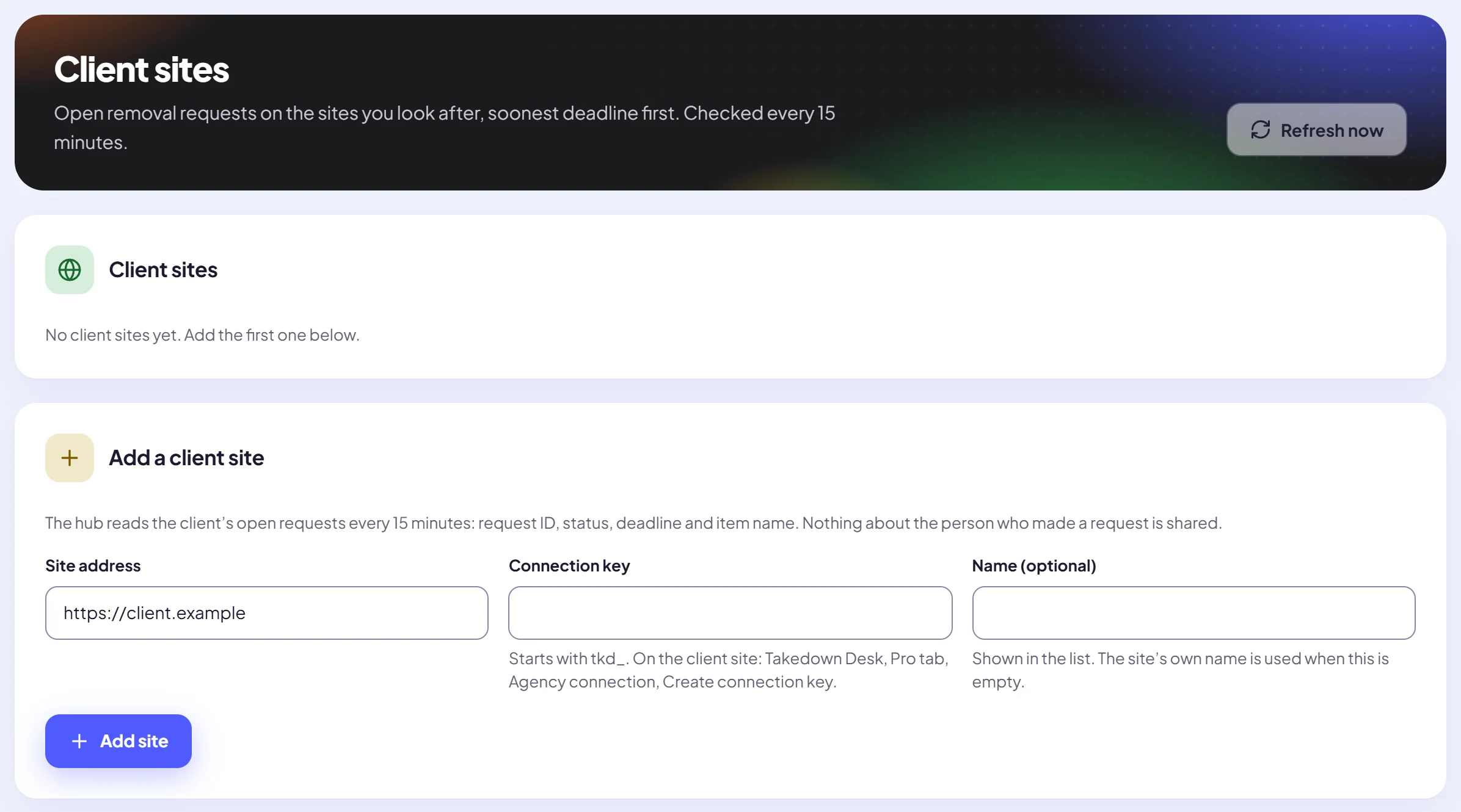
The hub needs an active Agency license. The Client sites tab appears in Takedown Desk, next to the Pro tab, for people who can manage Takedown Desk settings.
- Open Takedown Desk > Client sites, card Add a client site.
- Enter the Site address (for example
https://client.example; the hub adds https:// when it is missing) and paste the Connection key (it starts with tkd_). A Name is optional; the site’s own name is used otherwise.
- Select Add site. The hub checks the site at once. A site that does not answer, or that refuses the key, is not added and the message under the field says why.
What you see:
- Open requests on client sites: one table for all clients, the soonest deadline first, with the clock, request ID, item, site and status. Select a request ID to open it on the client site (a new tab; sign in there with your account on that site).
- Client sites: each site with its address and a status line: when it was last checked and its counts, or, in red, why the last check failed and the date of the list still shown. Rows from a site whose last check failed carry a Not updated chip.
- Refresh now checks every client site at once.
- Remove takes a site off the hub. Nothing changes on the client site; revoke the key there to end the connection fully.
Common messages:
| Message |
What to do |
| The site did not accept the connection key. |
The key was replaced or revoked. Create a new key on the client site, remove the site from the hub and add it again. |
| Takedown Desk Pro is not active on the client site. |
Activate the license on the client site. The hub keeps showing the last list it received. |
| Takedown Desk Pro was not found at this address. |
Check the address, and that Takedown Desk Pro is active on that site. |
| The site answered with a redirect. |
Use the site’s exact address, with https:// and www if it uses them. |
| The site could not be reached. |
The site is down or blocks the request. The hub tries again in 15 minutes. |
Good to know:
- Only
https:// addresses are accepted. Plain http:// works only for local test sites (localhost, 127.0.0.1 and *.test).
- The hub only ever reads one address on each client: its Takedown Desk summary. It follows no redirects and never opens reported links.
- Connection keys are stored encrypted on the hub and are never shown again after you add a site.
- If the hub’s Agency license ends, checks stop and the last lists stay visible. Adding sites and Refresh now wait until the license is active again.
- Each client shows up to 100 open requests, the soonest deadlines first.