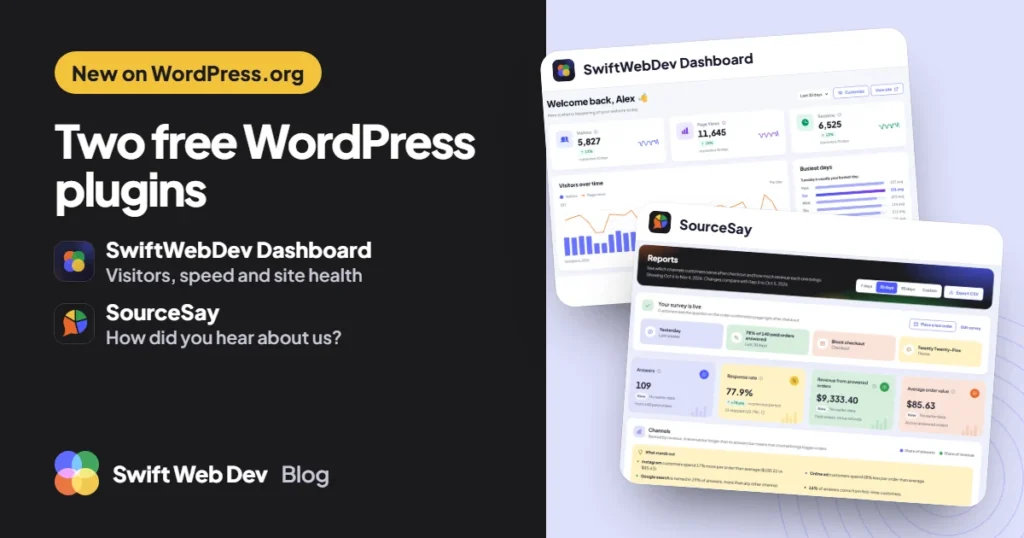
I’ve released two free WordPress plugins on WordPress.org. SwiftWebDev Dashboard & Analytics replaces the default WordPress dashboard with one screen for visitors, speed and site health. SourceSay asks WooCommerce customers “How did you hear about us?” right after checkout and shows the revenue behind each answer. Both are free to install, with no account and no usage limits.
I’m Rasel Hakkani, a WordPress developer at Swift Web Dev. I built both plugins because the sites I look after kept needing the same two things, and the tools I found either asked for too much setup or answered only half the question.
SwiftWebDev Dashboard: visitors, speed and site health on one screen
The default WordPress dashboard tells you very little. To learn how many people visited, how fast the site is and whether anything needs updating, most site owners open three different tools. Google Analytics alone needs an account, a tracking code and, in many places, a cookie banner.
SwiftWebDev Dashboard puts those answers on the screen you already see after login:
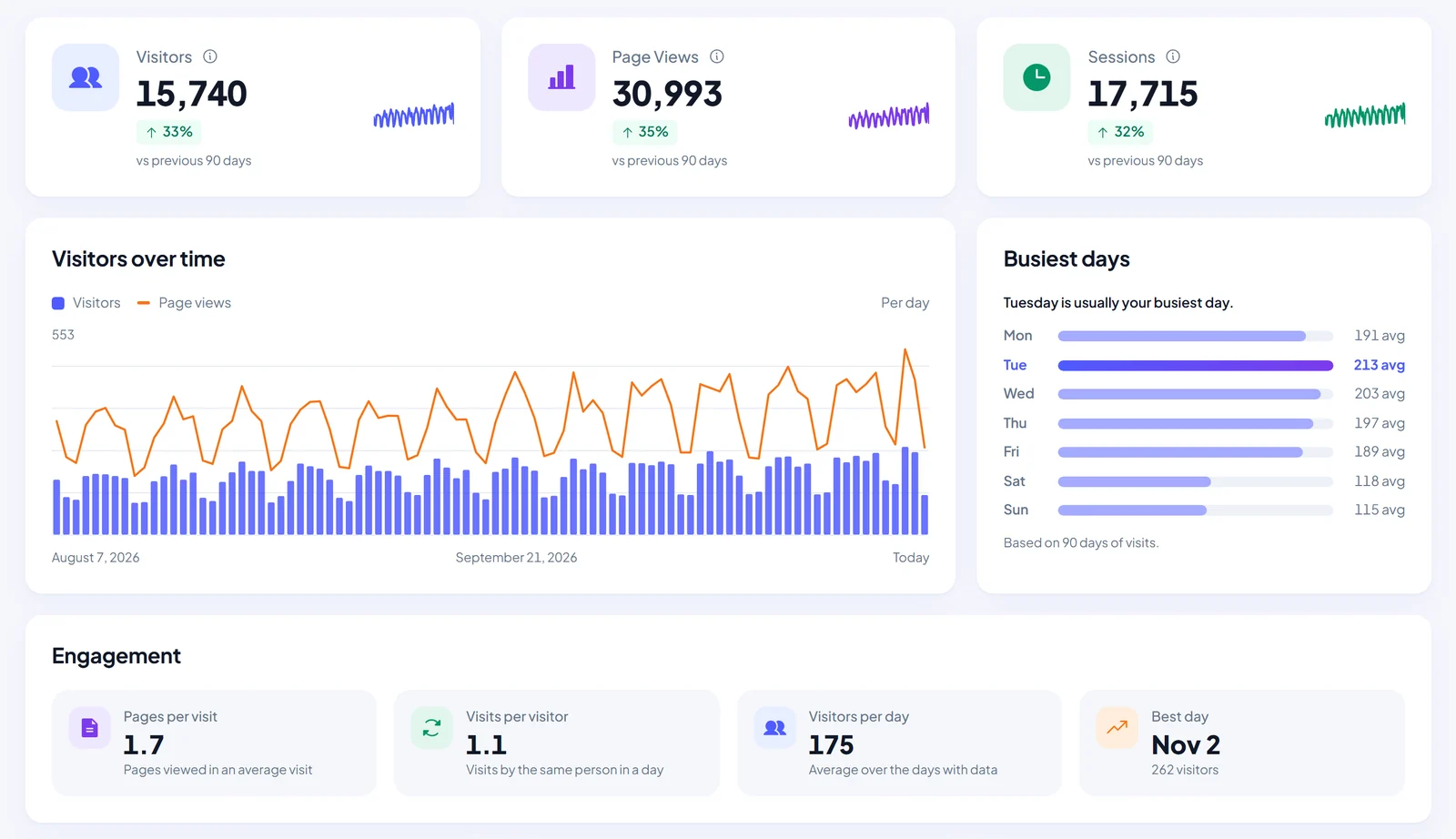
- Cookieless visitor stats. Visitors, page views and sessions for the last 7, 30 or 90 days, with a chart, your busiest days of the week and engagement numbers such as pages per visit. Visits are counted on your own site and stored in your own database. No cookies are set and IP addresses are never saved.
- PageSpeed scores with plain-language fixes. Run Google’s PageSpeed test for mobile and desktop with one click, see your Core Web Vitals, and get a ranked list of what to fix, written for people who aren’t developers. No Google API key needed.
- Updates and Site Health at a glance. Pending WordPress, plugin and theme updates, your PHP version and your Site Health status in one card.
- Quick links. Shortcuts to the tasks you use most, which you can pin, reorder and hide.
- An optional modern admin menu. A matching style for the WordPress admin menu, with your own logo at the top. The classic dashboard is always one click away.
Get it from the SwiftWebDev Dashboard page on WordPress.org, or in your WordPress admin under Plugins > Add New by searching for “SwiftWebDev Dashboard”. The SwiftWebDev Dashboard overview shows every screen, and the plugin docs explain each number. If you’re curious why I skipped Google Analytics, I compared the options in WordPress analytics without Google Analytics.
SourceSay: ask WooCommerce customers how they found you
WooCommerce has built-in Order Attribution, and it’s useful for clicks it can track. It can’t see a podcast mention, a friend’s recommendation or a video someone watched last week before typing your address. Those orders usually land under “Direct” or “Unknown”, and that can be a big part of a store’s sales.
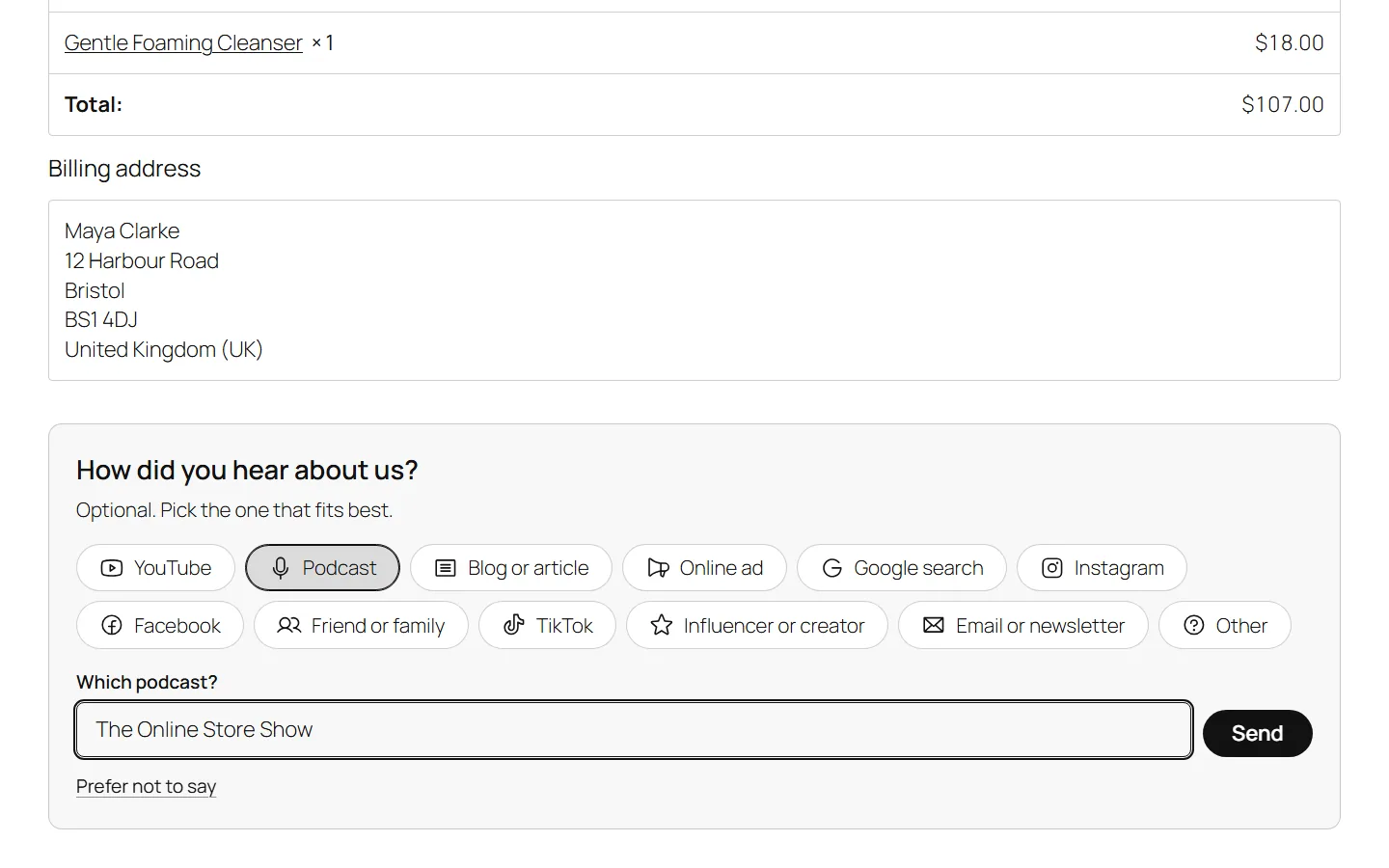
SourceSay fills that gap by asking the customer. It adds one question to the order confirmation page, and each answer is saved with the order total.
- One-tap survey on the thank-you page. “How did you hear about us?” with answer options you can edit. It works with both the classic checkout and the Checkout block.
- Revenue and average order value per channel. Reports show how many customers named each channel and how much they spent, not just a count of votes. Refunds and status changes keep the totals up to date.
- A comparison with WooCommerce Order Attribution. See what customers said next to what WooCommerce tracked, so the “Direct” and “Unknown” orders get a real source.
- Follow-up questions. Ask “Which podcast?” when someone picks Podcast, so you know which show to thank.
- Answers where you work. An answer column and filter on the WooCommerce orders list, plus CSV export for your own spreadsheets.
This tutorial sets SourceSay up from install to your first report, in about three minutes:
Read the transcript
Want to know how customers really found your WooCommerce store? Ask them. WooCommerce Order Attribution can only record the last click it sees. When someone hears about you on a podcast, from a friend, or in an AI chat, and then types your address, the order shows up as Direct. Missing tracking data shows up as Unknown. SourceSay fills that gap with one question on the order confirmation page: How did you hear about us?
It is free, responses are unlimited, and customers never see an extra field before they pay. Step one: install it. In your WordPress admin, go to Plugins, Add New Plugin, and search for SourceSay. Click Install Now, then Activate. WooCommerce needs to be active too. Step two: open WooCommerce, SourceSay. A short setup starts. Pick the kind of store you run, and it fills in answers that fit, like Google search, Instagram, or a friend.
Next, check your question and the answers customers can pick. You can reword the question, rename or reorder answers, change icons, or turn one off. The preview on the right updates as you type. For more detail, switch on a follow-up for any answer, like Which podcast? Then click Save and continue. Step three: see it live. Your survey is still off at this point. Click Place a test order.
The order confirmation page opens in a new tab. Test orders are marked as tests, send no emails, and never count in your reports. Answer the question there, just like a customer would. Back in setup, the page updates by itself: It works. Your answer arrived. Now click Turn on my survey. From the next order on, customers see the question right after checkout. Step four: read your report.
Under Reports, you see how many customers answered, your response rate, the revenue from answered orders, and the average order value. The Channels table ranks every answer by revenue. Compare each channel's share of answers with its share of revenue. A longer revenue bar means that channel brings bigger orders. In WooCommerce Orders, every order shows what the customer said, next to the source WooCommerce tracked.
Here, an order tracked as Direct actually came from a podcast. You can filter orders by answer, export everything to CSV, and change the question any time on the Survey tab. And on your WordPress dashboard, a SourceSay widget shows your response rate, the revenue from answered orders, and your top five channels from the last thirty days. Recap: install SourceSay, check your question, test it and turn it on, then read revenue by channel in Reports.
Subscribe for more SourceSay tutorials.
Responses are unlimited in the free plugin. Get it from the SourceSay page on WordPress.org or search for “SourceSay” under Plugins > Add New. The SourceSay overview walks through the reports, and the SourceSay docs cover setup, custom thank-you pages and privacy.
Free to use, with optional PRO add-ons
Everything above is in the free plugins, with no license key and no time limit. Each plugin also has an optional paid add-on for people who want more. SwiftWebDev Dashboard PRO adds deeper analytics such as traffic sources, top pages and session recordings, from $25 a year. SourceSay Pro adds multi-question surveys, lifetime value by channel and integrations with tools like GA4 and Klaviyo. You don’t need either add-on to use the free plugins.
Feedback and custom work
If you try either plugin, I’d like to hear what works and what doesn’t. The support forums on WordPress.org are the best place for bug reports and feature requests, and a short review there helps other site owners find the plugins.
And if your site needs something no plugin covers, such as a custom WooCommerce feature, a faster site or a plugin built for your business, that’s the work I do every day. Start a discussion and tell me what you need.