To serve WebP images in WordPress, make WordPress save its generated image sizes as WebP, then make sure old posts get those files too. WordPress has accepted WebP uploads since version 5.8, but it does not convert your JPEG and PNG uploads for you. You switch that on with a short code snippet or a plugin, then regenerate the images you already have.
I tested every step in this guide on a local WordPress 7.1.4 site on November 11, 2026, with five images from this site’s media library. The numbers and the warnings below come from that test, including one step that broke the images in an existing post.
Does WordPress support WebP images?
Yes. WordPress 5.8 added WebP support, so you can upload a .webp file to the Media Library and use it like a JPEG. WordPress 6.5 added AVIF the same way.
What WordPress doesn’t do is convert. On my test site, a JPEG upload with no extra code produced eight smaller sizes, and all eight were JPEG. A PNG upload produced PNG sizes. So a site can run the latest WordPress and still serve no WebP at all.
How much smaller WebP was in my test
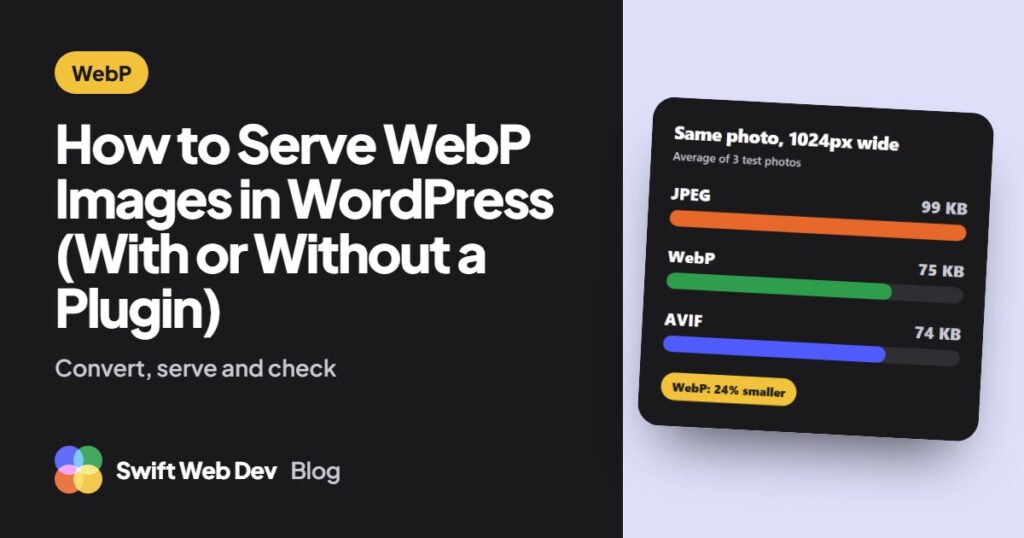
I uploaded the same five images three times: once with WordPress defaults, once with WebP output switched on and once with AVIF output. The table adds up the image sizes WordPress generated for each upload, which are the files your pages load.
| Test images | WordPress default | WebP output | AVIF output |
|---|---|---|---|
| Three 1600px JPEG photos, all generated sizes | 1,338 KB | 1,017 KB (24% less) | 988 KB (26% less) |
| The same photos, 1024px size only, average | 99 KB | 75 KB (24% less) | 74 KB (26% less) |
| PNG banner graphic, 781px wide | 358 KB | 96 KB (73% less) | 53 KB (85% less) |
| PNG illustration, 1024px square | 1,892 KB | 251 KB (87% less) | 231 KB (88% less) |
| Time to process one photo upload | About 1 second | Under 2 seconds | 14 to 30 seconds |
Two things to read into that table. The photo saving matches what WordPress itself says to expect, which is around 30%. The PNG saving looks huge because WordPress writes lossy WebP, while PNG is lossless. That’s fine for photos and illustrations, but check logos and screenshots with small text by eye before you trust it.
The test server ran PHP 8.2 with the GD image library, with WooCommerce active, which is why each photo got eight sizes. Your numbers will differ with your images and your host.
Convert images to WebP in WordPress without a plugin
WordPress has a filter called image_editor_output_format that tells it which format to save generated sizes in. Mapping JPEG and PNG to WebP takes a few lines:
add_filter( 'image_editor_output_format', function ( $formats ) {
	if ( ! wp_image_editor_supports( array( 'mime_type' => 'image/webp' ) ) ) {
		return $formats;
	}
	$formats['image/jpeg'] = 'image/webp';
	$formats['image/png']  = 'image/webp';
	return $formats;
} );
Save it as a file in wp-content/mu-plugins/, or add it with a code snippets plugin. Don’t put it in a theme’s functions.php, because it stops working when you change themes. The ready-made file is on GitHub: raselhk/wordpress-snippets/images/webp-output.
With the filter active, this is what one JPEG upload produced on my test site:
- Every generated size was a .webp file.
- WordPress also wrote a full-size .webp (227 KB, against 304 KB for the JPEG I uploaded), and the attachment’s address pointed to it.
- The JPEG I uploaded stayed on the server as the original, so nothing is lost.
- WebP sizes were saved at quality 86. WordPress uses 82 for JPEG.
- The image tag WordPress printed for that upload used the .webp files in both
srcandsrcset.
The filter only affects images uploaded after you add it. Existing images need the regenerate step further down.
Use a WordPress WebP plugin
If you’d rather not add code, a plugin does the same job and adds a settings screen. These figures are from WordPress.org on November 11, 2026.
- Modern Image Formats is from the WordPress Performance Team and has more than 100,000 active installs. It builds on the same core image handling as the snippet above. It saves AVIF when your server supports it and WebP when it doesn’t, and you can pick the format under Settings, then Media. It’s the closest thing to an official WebP plugin, and it’s free.
- Converter for Media has more than 500,000 active installs. It converts your whole existing library in one run and serves the new files through server rules, so old image addresses keep working. AVIF is in its paid version.
- EWWW Image Optimizer has more than 1 million active installs. It compresses images as well as converting them, which matters if your uploads are large to begin with.
My rule of thumb: a new site with few images does fine with the snippet or Modern Image Formats. A site with years of uploads is easier with a plugin that bulk converts and handles old addresses for you.
Convert existing images to WebP
To convert what’s already in the Media Library, regenerate the image sizes while the filter or the plugin is active. With WP-CLI that’s one command:
wp media regenerate --skip-delete --yesKeep --skip-delete in that command. I ran it both ways on a test post, and the difference matters:
- Without it, WordPress deleted the old JPEG sizes. The post still pointed to the old .jpg address, and that address returned a 404. The image was broken.
- With it, the old JPEG sizes stayed next to the new WebP ones. The post kept working, but it kept loading the JPEG, because the address saved in the post hadn’t changed.
So regenerating creates the WebP files, but it doesn’t change what your old posts load. Images that WordPress prints from the attachment, such as featured images, switch to WebP on their own. Images inside post content don’t. The next section fixes that. Back up the uploads folder before you regenerate a live site.
Serve WebP images for old JPEG and PNG addresses
On an Apache server, a rewrite rule can answer a request for a .jpg with the .webp file next to it, when the browser accepts WebP. Save this as .htaccess inside wp-content/uploads/:
<IfModule mod_rewrite.c>
RewriteEngine On
RewriteCond %{HTTP_ACCEPT} image/webp
RewriteCond %{REQUEST_FILENAME} ^(.+)\.(jpe?g|png)$
RewriteCond %1.webp -f
RewriteRule ^(.+)\.(jpe?g|png)$ $1.webp [T=image/webp,L]
</IfModule>
<IfModule mod_headers.c>
<FilesMatch "\.(jpe?g|png|webp)$">
Header append Vary Accept
</FilesMatch>
</IfModule>
I tested it on Apache 2.4 with the regenerated images from the previous step:
- A request for the 1024px .jpg from a browser that accepts WebP got the WebP file: 73 KB in place of 97 KB, with the type
image/webp. - The same request without WebP support got the original JPEG.
- The broken image from the first regenerate test loaded again for browsers that accept WebP, because the rule found the .webp file. Without WebP support it was still a 404, which is one more reason to keep the old files.
Two limits. I didn’t test Nginx or LiteSpeed; Nginx needs the same logic written in its own config, and many managed hosts do it for you. And if a CDN or page cache sits in front of your site, check that it respects the Vary: Accept header, or it can hand a WebP file to a browser that asked for a JPEG.
Upload WebP images to WordPress directly
You can also skip conversion and upload .webp files yourself. On my test site a WebP upload went through with no extra settings, and all eight generated sizes were WebP.
If WordPress refuses the file with a message that the web server cannot generate responsive image sizes for it, the server’s image library was built without WebP. Go to Tools, then Site Health, then Info, and open Media Handling to see which formats your server supports. Your host can switch WebP on.
To convert a few images by hand first, our free PNG to WebP converter runs in your browser and doesn’t upload your files anywhere.
WebP or AVIF for WordPress?
AVIF files are usually a little smaller, and browser support is now almost level: 97.2% of users for WebP and 96.7% for AVIF, according to Can I Use data from November 11, 2026.
In my test the extra saving was small and the cost was high. AVIF made the photo sizes 26% lighter against 24% for WebP, and for one of the three photos the AVIF files came out larger than the WebP ones. Each AVIF upload took 14 to 30 seconds to process, against under 2 seconds for WebP. That was the GD library on a local machine, and a server with Imagick may be faster, but on a busy editor’s site slow uploads get noticed.
My advice is to start with WebP. Move to AVIF later if your host processes it quickly and your own images show a clear gain.
How to check that WebP is being served
- Open the page in Chrome, press F12 and open the Network tab.
- Choose the Img filter and reload the page.
- Read the Type column. It should say
webp, even when the address ends in .jpg.
Then run the page through PageSpeed Insights. The “Serve images in next-gen formats” suggestion should be gone or much shorter. If you haven’t run that test before, see how to check your PageSpeed score in WordPress.
When WebP isn’t the real problem
WebP makes each image about a quarter lighter. It doesn’t fix an image that is far too big for its place on the page, a hero image that loads late, or a missing width and height that makes the layout jump. Those show up in Core Web Vitals, and a new format alone won’t move them.
Our guide to LCP, INP and CLS fixes for WordPress covers that work. If you’d rather have it done for you, our Core Web Vitals optimization service starts from your real-user data and includes image formats, sizing and loading order.
Questions people ask about WebP in WordPress
Does WordPress convert images to WebP automatically?
No. WordPress accepts WebP uploads, but it saves JPEG uploads as JPEG and PNG uploads as PNG unless you add the image_editor_output_format filter or a plugin that does the same.
Why can’t I upload WebP images to WordPress?
Either the site runs a version older than 5.8, or the server’s image library has no WebP support. Check Media Handling under Tools, Site Health, Info, and ask your host to enable WebP in GD or Imagick.
Do I need a plugin to serve WebP images in WordPress?
No. A short filter makes WordPress save new image sizes as WebP, and WP-CLI regenerates the old ones. A plugin is easier when you have a large library or no access to the server.
What is the best free WebP plugin for WordPress?
For new uploads, Modern Image Formats from the WordPress Performance Team is the simplest free choice. For converting a large existing library, Converter for Media does the bulk conversion in its free version.
Will switching to WebP hurt my SEO?
No. Google lists WebP among the image formats it supports in Search. Keep the same image addresses or let the rewrite rule answer the old ones, so nothing that is indexed returns a 404.